
Table of Contents
- Why Crawl Errors Kill Your Rankings Before They Start
- Where Crawl Errors Actually Hide in WordPress
- How to Actually Fix WordPress Crawl Errors
- Site Architecture That Google Actually Wants to Crawl
- Monitoring Crawl Health Beyond Search Console
- When to Worry About Crawl Errors (and When to Ignore Them)
- Building Crawlability Into Your Publishing Workflow
Why Crawl Errors Kill Your Rankings Before They Start
You’ve published a brilliant piece of content. It’s optimized, it’s valuable, it answers real questions. But three weeks later, it’s still not ranking. You check Google Search Console and find it: Discovered – currently not indexed. The page exists, Google knows about it, but they haven’t bothered to properly crawl and index it.
This happens because Google doesn’t crawl everything. They allocate a specific budget to each site based on authority, freshness, and technical health. When your site structure forces crawlers to navigate through broken links, orphaned pages, and convoluted URL paths, you’re burning that budget on pages that don’t matter.
Here’s what most people get wrong: they think crawl errors are just 404s. But crawlability issues run deeper. A perfectly functional page can be effectively invisible if it’s buried seven clicks from your homepage, or if no other page links to it.
The Three Types of Crawl Waste You’re Probably Experiencing
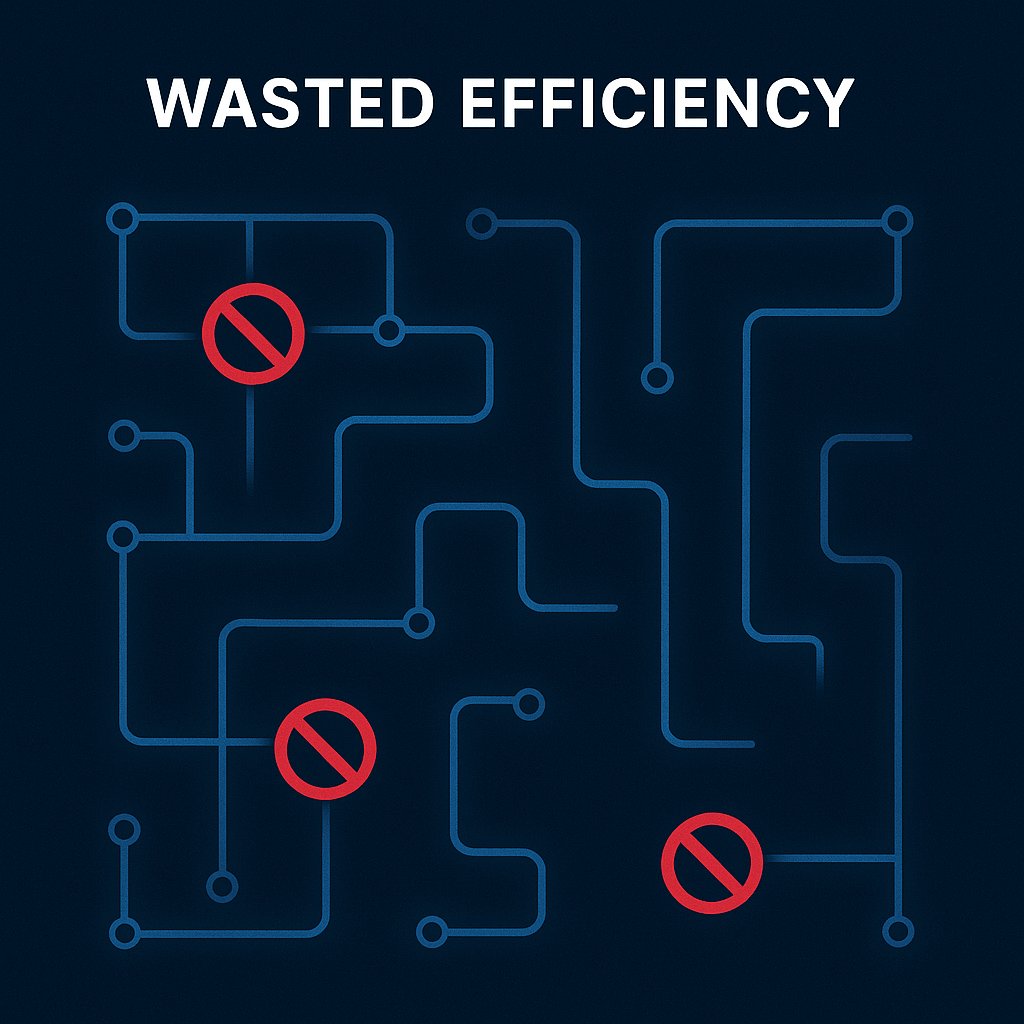
Crawl waste shows up in patterns. Orphaned content — pages with zero internal links pointing to them — forces Google to discover them only through sitemaps. That’s like telling someone to find your house but refusing to give directions. They might eventually get there, but it’ll take forever.
Redirect chains are the second killer. When URL A redirects to URL B, which redirects to URL C, crawlers follow that chain and count each hop against your budget. A site with hundreds of old redirects pointing to moved content bleeds crawl budget daily.
The third issue is crawl traps: faceted navigation, infinite scroll implementations, or calendar archives that generate thousands of meaningless URLs. Google wastes time crawling example.com/products?color=red&size=small&sort=price when that page is functionally identical to twenty others.
Where Crawl Errors Actually Hide in WordPress
Google Search Console shows you the obvious stuff: server errors, 404s, soft 404s. But the real problems are structural.
Open your sitemap.xml right now. How many URLs are in there? Now check Google Search Console’s coverage report. How many pages does Google actually index? If there’s a gap of more than 10%, you’ve got a crawlability problem. Those pages aren’t broken — they’re just not worth Google’s time.
Internal Link Gaps Create Invisible Content
Your cornerstone content should be linked from dozens of relevant pages. But most WordPress sites have the opposite problem: their best pages get mentioned once (if at all) while category archives and tag pages soak up all the internal link equity.
Run this test: pick your most important landing page. Use a tool like Screaming Frog or even Google’s site: operator with a specific phrase to see how many pages actually link to it. If it’s fewer than five, Google’s seeing that page as unimportant — regardless of how much effort you put into optimizing it.
URL Structure That Fights Against Crawlers
WordPress defaults to URL structures like example.com/2023/05/15/post-name. This creates date-based hierarchy that makes zero sense for evergreen content. Worse, it signals to Google that the content is time-sensitive — and therefore less worth crawling six months later.
Flat URL structures (example.com/post-name) generally perform better for crawling, but they sacrifice the benefits of topical hierarchy. The sweet spot is a shallow structure: example.com/category/post-name with no more than three levels deep for any page.
How to Actually Fix WordPress Crawl Errors
Start with Google Search Console’s Coverage report. Sort by error type. You’ll see patterns immediately.
Server errors (5xx) mean your hosting can’t handle Google’s crawl rate. This happens with cheap shared hosting during traffic spikes. Solution: upgrade hosting or implement crawl rate limiting in Search Console (though slowing Google down isn’t ideal).
404 errors fall into two categories: legitimate dead content that should stay dead, and moved content that needs redirects. Don’t redirect everything mindlessly. If a page was genuinely low-value and you deleted it on purpose, let it 404. Google will eventually drop it from their index.
For moved content, implement 301 redirects. But here’s the key: audit your redirects every six months. After a year, update internal links to point directly to the final destination instead of relying on the redirect. This eliminates redirect chains and reclaims crawl budget.
Fixing Soft 404s Without Breaking Your Site
Soft 404s are the sneakiest issue. Google requests a URL, your server returns a 200 OK status, but the page content says this doesn’t exist. This happens with poorly configured search results pages, empty category archives, or custom 404 templates that don’t send proper status codes.
Your WordPress theme might be serving a beautiful custom 404 page — but if it’s not sending a 404 header, Google sees it as real content. Check your theme’s 404.php template. It should include status_header(404) or WordPress’s built-in handling should cover it. If you’re seeing soft 404 reports for legitimate error pages, that’s your problem.
Orphaned Pages Need Adoption, Not Deletion
When you find orphaned content (pages with no internal links), don’t just delete them. Evaluate whether they deserve to exist first. If they’re valuable, weave them into your internal linking structure.
Most WordPress sites have dozens of orphaned blog posts from years past. They rank for long-tail queries, they answer real questions, but they’re disconnected from everything else. Retroactive internal linking — going back through old content to add contextual links to newer pages — is one of the highest-ROI SEO activities you can do.
Tools like AI Internal Links can automate this process by analyzing your content semantically and suggesting relevant connections between pages. This is especially valuable for sites with hundreds of posts where manual linking becomes impossible to maintain.
Site Architecture That Google Actually Wants to Crawl
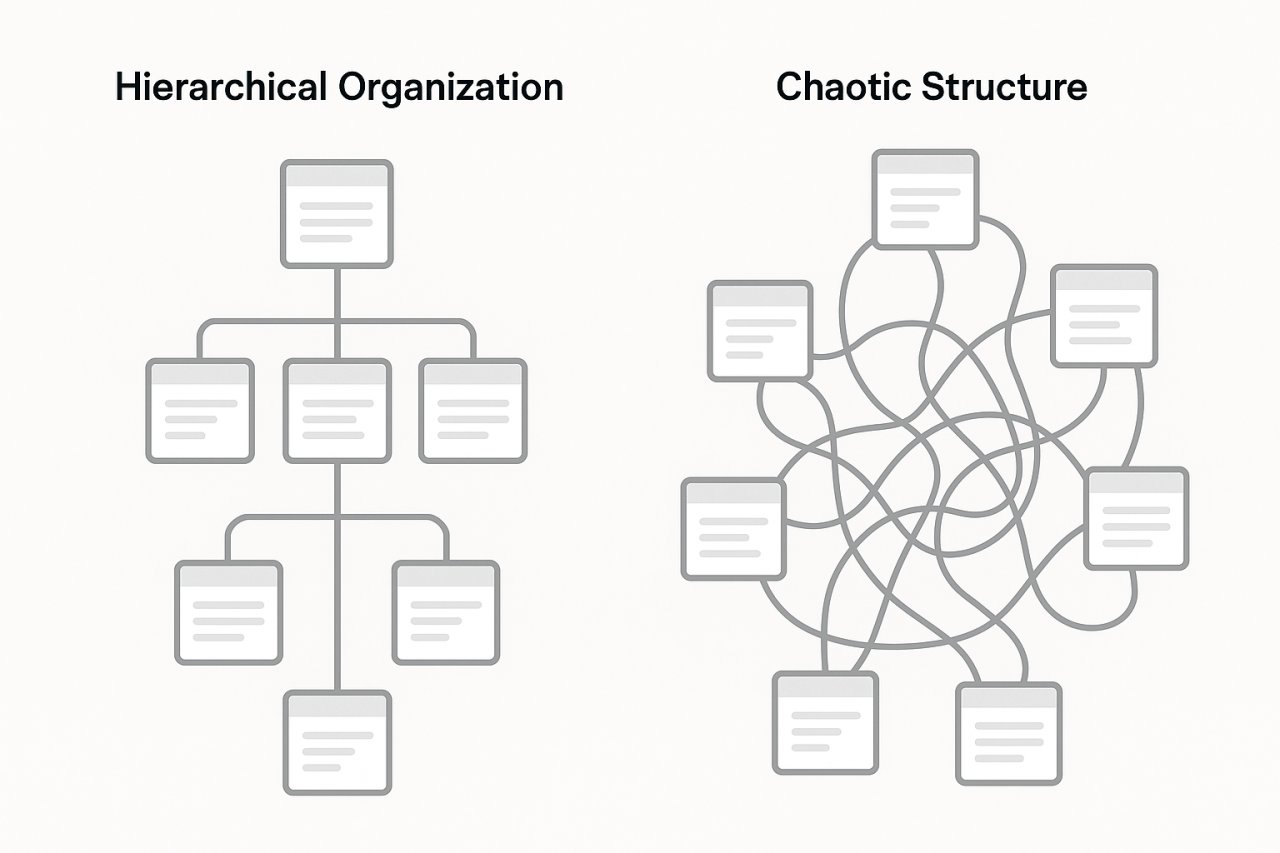
Forget the pyramid diagrams you’ve seen in SEO guides. Real site architecture is about distance from the homepage measured in clicks, not visual hierarchy.
Every important page should be three clicks or fewer from your homepage. Your homepage links to category pages, category pages link to pillar content, pillar content links to supporting articles. That’s three levels. Anything deeper gets crawled less frequently and ranks with less authority.
The Hub-and-Spoke Model for Content Clusters
Create comprehensive pillar pages on core topics. Link out from those pillars to 8-15 supporting articles that cover subtopics in depth. Then — and this is what most people miss — link back from those supporting articles to the pillar and to each other where contextually relevant.
This creates a dense internal linking cluster that signals topical authority to Google. When crawlers land on any page in the cluster, they can easily discover and crawl every related page. Your crawl budget gets spent on content that reinforces your expertise instead of scattered random posts.
Breadcrumbs Are Crawl Paths, Not Just User Navigation
Breadcrumb navigation does two things: it helps users understand where they are, and it creates automatic internal links that Google crawls. Implement schema markup for breadcrumbs (BreadcrumbList structured data) and Google will use them to understand your site hierarchy.
WordPress themes often implement breadcrumbs poorly or not at all. If you’re using Yoast SEO or Rank Math, enable their breadcrumb features. If not, Schema Pro or a dedicated breadcrumb plugin will do the job.
Monitoring Crawl Health Beyond Search Console
Google Search Console shows you what Google sees. But you need to audit your own site to catch issues before Google does.
Log file analysis reveals which pages Google actually crawls and how often. Most sites don’t look at this. Your server logs show every Googlebot visit. Tools like Screaming Frog Log Analyzer or Oncrawl can parse these logs and show you patterns: pages Google crawls daily, pages they ignore, pages they hit with errors.
If Google crawls your tag archive pages more than your cornerstone content, your internal linking is broken. Fix it.
Crawl Budget Indicators You Can Track Weekly
Watch these metrics in Search Console:
- Total crawl requests per day: sudden drops indicate technical issues or manual penalties
- Time spent downloading a page: if this spikes, your server is slow or your pages are bloated
- Pages discovered vs pages indexed: a growing gap means Google is finding content but choosing not to index it
If pages-discovered grows while pages-indexed stays flat, you’re creating content faster than Google can evaluate it — or Google is evaluating it and finding it low-quality. Scale back publishing, improve existing content, and fix your internal linking before publishing more.
When to Worry About Crawl Errors (and When to Ignore Them)
Not every crawl error matters. Some are noise.
Legitimate 404s from old deleted content that you never redirected? Ignore them. Google will eventually stop trying. Same with crawl errors on intentionally blocked URLs (like /wp-admin/ or private pages).
Soft 404s on search results pages with no results? That’s actually correct behavior. Let Google see them as empty and they’ll stop crawling them.
But crawl errors on important pages — your cornerstone content, your product pages, your core category pages — those need immediate fixes. If Google can’t reliably access your most important URLs, nothing else you do matters.
The One Metric That Predicts Ranking Success
Here it is: the percentage of your published pages that rank in the top 100 for at least one keyword. If only 40% of your content ranks for anything, you have a crawl and architecture problem. Google’s seeing most of your site as irrelevant.
Fix your internal linking, consolidate thin content, and make sure every page has a clear path from your homepage. Track this metric monthly. As it improves, your overall organic traffic will follow.
Building Crawlability Into Your Publishing Workflow
Don’t treat crawl optimization as a quarterly audit. Build it into how you publish.
When you create a new page, immediately answer: where does this fit in my site structure? What category? What pillar page does it support? Which existing articles should link to it? Add those links before you hit publish.
When you update old content, check for new linking opportunities. That post you’re refreshing could support three newer articles you’ve published since. Add those links. Make your site a web, not a collection of isolated documents.
Use a simple checklist:
- New page is linked from at least 3 relevant existing pages
- New page links out to 3-5 related pages on your site
- URL structure follows your established hierarchy (no random depth levels)
- Page is added to appropriate category and tags (but not 15 tags — be selective)
This takes five extra minutes per post. It compounds over hundreds of posts into a site architecture that Google can efficiently crawl and understand. Your competitors aren’t doing this. You should.