
Table of Contents
Here’s what almost nobody tells you: Core Web Vitals aren’t just about speed. They’re about perceived performance, crawl efficiency, and whether users can actually interact with your pages without fighting your theme’s JavaScript. The gap between what you see in PageSpeed Insights and what Google uses for ranking decisions is wider than most SEOs realize.
This guide focuses on the metrics that genuinely influence rankings, the template-level issues that kill performance at scale, and the optimizations that deliver measurable results — not just better scores.
The Three Metrics That Actually Move the Needle
Google tracks dozens of performance signals. Only three of them count as Core Web Vitals, and only one of them typically determines whether you pass or fail.
LCP: Why Your Template Structure Matters More Than Your Host
Largest Contentful Paint measures how fast your main content loads. Most WordPress sites fail this because of how their themes are built, not because their hosting is slow.
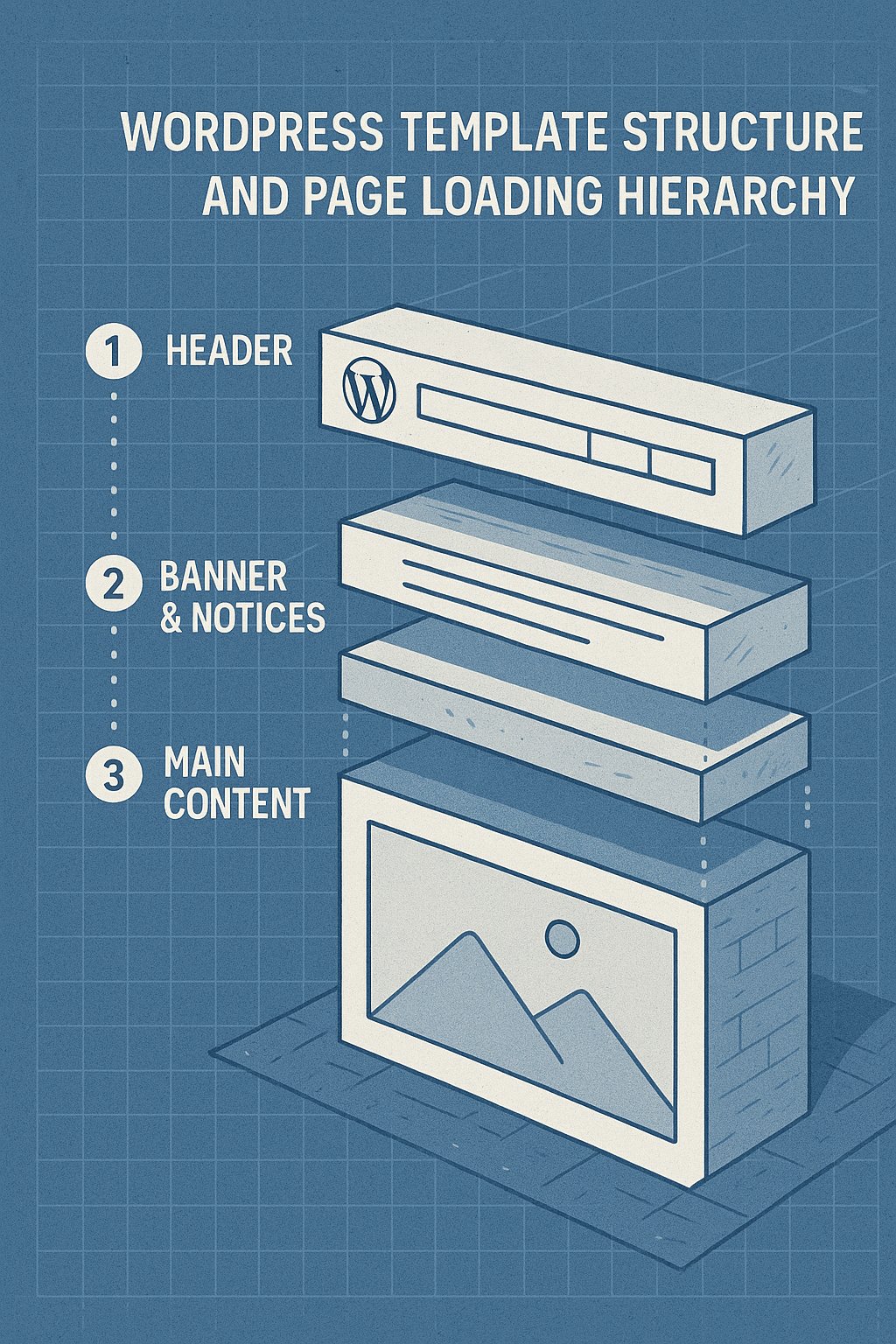
Your LCP element is usually your featured image or your first heading. If that image sits below a header packed with navigation menus, social icons, and a banner notification bar, it won’t start loading until all that other stuff finishes parsing. Template hierarchy kills LCP before bandwidth ever becomes the issue.
The threshold is 2.5 seconds. Anything above 4 seconds is a hard fail. But here’s the thing: you’re not trying to hit 2.5 seconds in Chrome DevTools on your MacBook Pro. You need to hit it for 75% of your actual mobile visitors on slower connections.
INP: The Metric That Replaced FID and Why It’s Harder to Fix
Interaction to Next Paint replaced First Input Delay in March 2024. It measures how long your page takes to respond to clicks, taps, and keyboard inputs throughout the entire visit — not just the first interaction.
INP is brutal for WordPress because most themes load multiple JavaScript libraries that fight for control of user interactions. Your social sharing plugin, your analytics script, your commenting system, and your page builder’s animation library are all competing to process the same click event.
A good INP score is under 200 milliseconds. Anything over 500 milliseconds fails. And unlike LCP, you can’t fix INP with a caching plugin. You have to identify which scripts are blocking the main thread and either remove them or defer them properly.
CLS: The Layout Shift Nobody Sees Until Google Does
Cumulative Layout Shift tracks how much your page content jumps around while loading. You’ve experienced this: you’re about to click a link, and an ad loads above it, pushing everything down. You click the ad instead.
WordPress sites typically fail CLS for three reasons: images without width and height attributes, web fonts that swap in after the page loads, and third-party embeds that resize unpredictably. The threshold is 0.1. Most sites sit around 0.15 to 0.25, which means they’re failing on mobile where every shift feels more jarring.
Fix your images first. That alone gets most sites under the threshold.
What Google Really Uses Core Web Vitals For
Core Web Vitals became a ranking factor in June 2021. The impact was smaller than Google suggested, but it’s real — especially for queries where multiple pages are otherwise equally relevant.
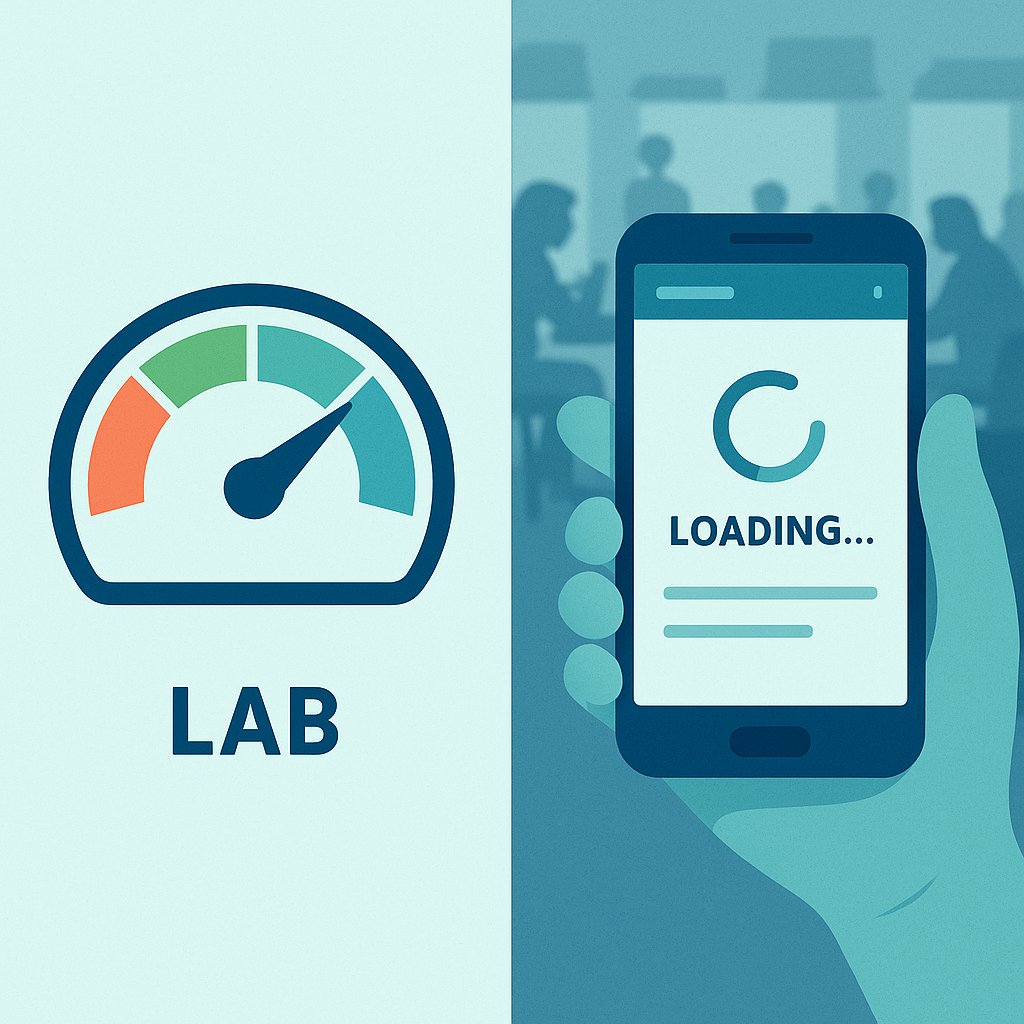
Field Data Beats Lab Data Every Time
Google doesn’t care what Lighthouse says. It uses the Chrome User Experience Report (CrUX), which tracks real visitor behavior. If your analytics show your pages load in 1.8 seconds but CrUX data shows 4.2 seconds, Google sees 4.2 seconds.
The gap happens because CrUX includes mobile users on spotty networks, visitors with ad blockers that break your theme, and people opening 47 tabs at once. Lab testing shows your best-case scenario. Field data shows what actually happens.
You can check your CrUX data at https://developers.google.com/speed/pagespeed/insights/ by entering your URL. Scroll past the lab data to the field data section. That’s what Google uses.
The 75th Percentile Rule Most People Misunderstand
Google doesn’t rank you on your average Core Web Vitals. It uses the 75th percentile of your field data. That means 75% of your real visitors need to have a good experience. The fastest 25% don’t save you if the slowest 25% are suffering.
This percentile approach punishes sites that work great on desktop but fall apart on mobile. If 80% of your traffic comes from mobile and those users get a 5-second LCP, your desktop perfection doesn’t matter. You fail the threshold.
Optimize for the slow end of your traffic, not the fast end.
Diagnosing Slow WordPress Templates Without Developer Tools
Most WordPress performance advice assumes you’re comfortable reading waterfall charts and profiling JavaScript execution. You don’t need to be.
The Homepage Is Usually Fine — Your Archive Pages Aren’t
Homepages get all the optimization attention. They’re cached aggressively, tested constantly, and usually load quickly. But Google doesn’t just rank your homepage.
Your category pages, tag archives, and author pages are where performance collapses. These templates often load 10-20 posts at once, each with its own featured image, excerpt, metadata, and related post queries. The database gets hammered. INP spikes because the page has to process dozens of lazy-load triggers.
Test your slowest archive page, not your homepage. That’s where your real bottleneck lives.
Plugin Bloat Shows Up in INP First
Every plugin you install adds JavaScript. Some add a little. Some add entire libraries. Your contact form plugin probably loads jQuery, form validation scripts, and a reCAPTCHA integration on every single page — even pages without a form.
Deactivate plugins one by one while watching your INP score in PageSpeed Insights. The plugin that causes a 200-millisecond jump when you turn it off is your problem. Replace it or configure it to load conditionally.
Most sites can cut their plugin count in half without losing functionality. You just have to be willing to test.
Optimizations That Actually Impact Rankings
Not all performance fixes deliver equal SEO value. Some move the needle. Others just make your Lighthouse score prettier.
Lazy Loading Images the Right Way
WordPress enables lazy loading by default as of version 5.5, but most themes override it incorrectly. The loading='lazy' attribute should never apply to above-the-fold images. If your LCP image is lazy-loaded, it won’t start downloading until after the JavaScript determines it’s in the viewport. That delay kills your LCP score.
Add loading='eager' to your featured image and first paragraph image. Let everything else lazy-load. That one change often drops LCP by 0.5 to 1.0 seconds.
Why Your Theme’s JavaScript Bundle Is the Real Problem
Most WordPress themes ship with animation libraries, slider scripts, and interactive components you never use. They all load on every page. Your homepage doesn’t have a slider, but the slider JavaScript still loads because it’s bundled into your theme’s main file.
Switch to a lightweight theme like GeneratePress or Kadence. Measure the difference. You’ll see a 30-40% drop in JavaScript payload immediately. Block themes built for full-site editing tend to load cleaner code than legacy themes built on page builders.
Database Queries That Kill INP on Category Pages
Every time WordPress loads a category page, it runs queries to fetch posts, check taxonomies, count comments, and load metadata. Poorly coded themes and plugins run redundant queries — sometimes the same query three or four times per page load.
Install Query Monitor (a debugging plugin) and load a category page. Look at the duplicate queries section. If you’re seeing the same query executed 10+ times, your theme or a plugin is written inefficiently. Object caching helps, but fixing the root cause is better.

How Internal Linking Affects Crawl Paths and Core Web Vitals
This connection isn’t obvious, but it’s real. The way you structure internal links influences how efficiently Google crawls your site — and how quickly users can navigate to deeper content.
Cleaner Link Architecture Means Faster Discovery
When Google crawls your site, it follows links. If your most important pages are buried five clicks deep, Googlebot has to load five pages to reach them. Each page load costs crawl budget and time. If those intermediate pages are slow, the crawl slows down.
A flatter link structure — where important pages are two or three clicks from the homepage — reduces the number of page loads Google needs to discover your content. Fewer page loads means less strain on your server, which indirectly improves performance for real users too.
Strategic internal linking doesn’t just help rankings. It creates faster crawl paths that reduce server load during bot traffic spikes.
Reducing Click Depth Without Adding More Menus
The old advice was to cram everything into your navigation menu. Bad idea. Mega menus hurt INP because they load dozens of links and submenus that have to be interactive.
Instead, link contextually from within your content. If you write about WordPress performance, link to related articles about caching, CDN setup, and database optimization. Those links reduce click depth for both users and crawlers without bloating your navigation.
Tools like AI Internal Links can help automate this process, identifying relevant linking opportunities between posts as you publish new content — so you’re not manually hunting for connection points across hundreds of articles.
Measuring What Matters in 2026
Core Web Vitals will evolve. Google has already hinted at new metrics focused on scroll responsiveness and animation smoothness. But the principle stays the same: optimize for real user experience, not synthetic tests.
Track your field data monthly. Watch for regressions after theme updates or plugin installs. And remember: a perfect Lighthouse score that doesn’t reflect real visitor behavior is worthless.
Focus on the 75th percentile of your slowest traffic segment. That’s what Google ranks. Everything else is noise.