

Table of Contents
- Why WordPress Sites Get Slow (And Why Most Fixes Don’t Work)
- Server-Level Optimization: The Foundation Nobody Talks About
- Database Optimization: Clean Out the Junk
- Image Optimization: Stop Serving Bloated Files
- Caching Strategy: The Plugin Everyone Gets Wrong
- Code-Level Optimization: Trim the Fat
- How Site Speed Directly Impacts SEO Performance
- The Performance Optimization Checklist You Can Actually Use
Google doesn’t care about excuses. When your site takes more than three seconds to load, you’re already losing half your mobile visitors. And it’s not just users who bounce — search engines penalize sluggish sites in rankings. The good news? WordPress performance optimization isn’t rocket science. You just need to focus on what actually matters.
Most WordPress performance guides throw 47 optimization tips at you and call it a day. That’s useless. What you need is a prioritized approach: fix the big leaks first, then fine-tune. Let’s start where the real bottlenecks live.
Why WordPress Sites Get Slow (And Why Most Fixes Don’t Work)
WordPress out of the box isn’t slow. Your plugins are. Your theme is. That custom code someone added three years ago definitely is.
The typical WordPress site makes 80+ HTTP requests per page load. Each request is a round trip to the server. Add a slow host, unoptimized images, and zero caching, and you’ve got a recipe for a 6-second load time.
Here’s what actually slows WordPress down:
- Bloated themes loaded with features you never use
- Plugin conflicts where three plugins do the same job badly
- Uncompressed images that should be 200KB but are 2MB
- No caching so every visitor triggers a fresh database query
- Cheap shared hosting where 500 sites share one struggling server
Most people install a caching plugin and call it done. That’s like putting a spoiler on a broken engine.
Server-Level Optimization: The Foundation Nobody Talks About
Your hosting provider matters more than any plugin you’ll install. A fast site on slow hosting is impossible.
Pick the Right Hosting Architecture
Shared hosting is fine for a blog with 100 monthly visitors. For anything beyond that, you need managed WordPress hosting or a VPS. Companies like Kinsta, WP Engine, and Cloudways run WordPress-specific server configurations with built-in caching and CDN integration.
The performance gap is real. A site on quality managed hosting typically loads in 1-2 seconds. The same site on budget shared hosting? 4-6 seconds.
Enable Server-Level Caching
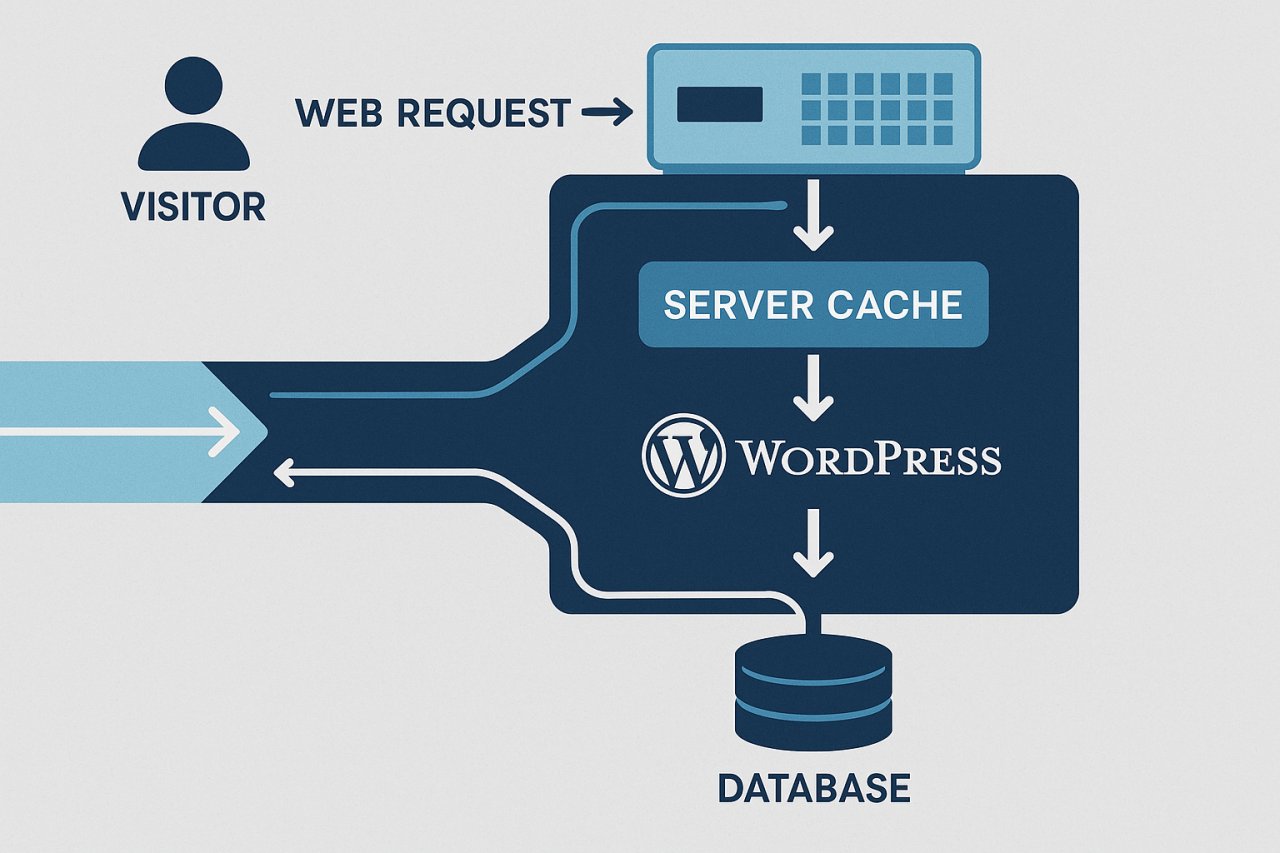
If your host offers server-level caching (like LiteSpeed Cache or Varnish), enable it. This sits upstream from WordPress and serves cached pages before PHP even loads. It’s dramatically faster than plugin-based caching alone.
Don’t have access to server settings? That’s a sign you’ve outgrown your current host.
Database Optimization: Clean Out the Junk
Your WordPress database accumulates cruft like a garage accumulates junk. Post revisions, spam comments, transient options that expired two years ago — all of it slows down queries.
Run Regular Database Cleanup
Use a plugin like WP-Optimize or Advanced Database Cleaner to purge:
- Post revisions (keep the last 3, delete the rest)
- Trashed posts and comments
- Expired transients
- Orphaned metadata
Schedule this monthly. A lean database means faster queries, which means faster page loads.
Optimize Database Tables
MySQL tables fragment over time. Running OPTIMIZE TABLE on your database tables periodically recovers wasted space and speeds up read operations. Most database plugins include this as a one-click action.
One client saw query times drop by 40% after their first database optimization. They’d been running the same site for four years without ever cleaning it.
Image Optimization: Stop Serving Bloated Files
Images are usually the biggest performance killer on WordPress sites. A single unoptimized hero image can weigh more than your entire HTML, CSS, and JavaScript combined.
Compress Everything Before Upload
Don’t rely on plugins to fix this after the fact. Use tools like TinyPNG, ImageOptim, or Squoosh to compress images before uploading. Aim for:
- JPEGs at 80-85% quality
- PNGs run through compression
- WebP format when possible (better compression, same quality)
A 2MB image compressed to 200KB looks identical to visitors but loads 10x faster.
Implement Lazy Loading
Why load images that aren’t visible on screen? Lazy loading defers off-screen images until the user scrolls. WordPress has native lazy loading since version 5.5, but plugins like Smush or ShortPixel offer more control.
This single change can cut initial page weight by 60%.
Caching Strategy: The Plugin Everyone Gets Wrong
Caching is non-negotiable. But most people install WP Rocket or W3 Total Cache and leave it on default settings. That’s a mistake.
Configure Page Caching Properly
WP Rocket is worth the $59. It’s the most beginner-friendly caching plugin with sane defaults. But you still need to configure:
- Cache lifespan (clear every 10 hours for dynamic sites)
- Mobile caching (separate cache for mobile visitors)
- User cache (separate cache for logged-in users)
- Minification settings (enable for CSS, be cautious with JS)
Free alternatives like WP Super Cache work but require more manual configuration.
Object Caching for Database-Heavy Sites
If you run WooCommerce, a membership site, or anything with complex queries, add Redis or Memcached object caching. This caches database query results in memory, bypassing MySQL entirely for repeat requests.
The performance gain for database-heavy sites is massive — we’re talking 50-70% faster query times.
Code-Level Optimization: Trim the Fat
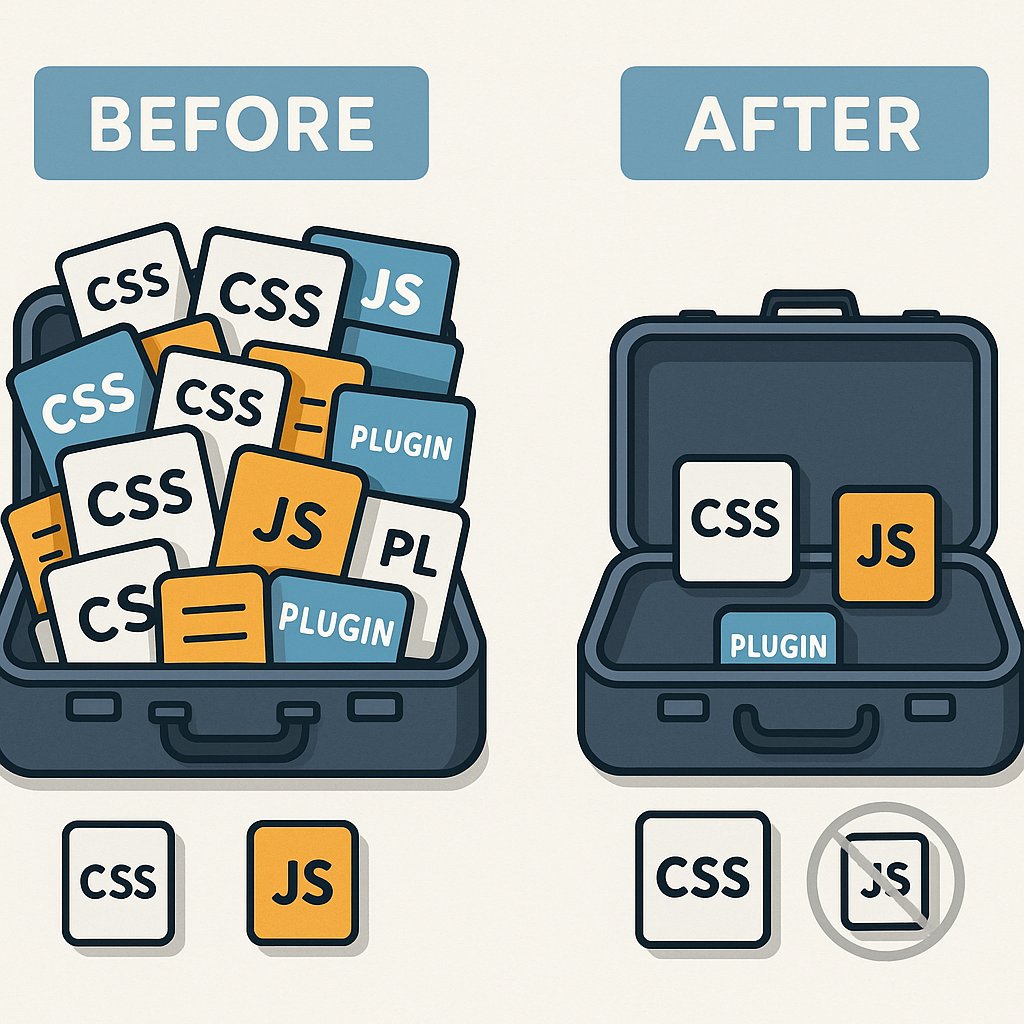
Your theme and plugins load CSS and JavaScript on every page, whether needed or not. This is insane.
Disable Unused Scripts and Styles
Use a plugin like Asset CleanUp or Perfmatters to disable scripts on pages where they aren’t needed. Does your contact form plugin load on every single page? Kill it everywhere except the contact page.
This type of optimization can reduce page weight by 30-40% on certain pages.
Minify and Combine Files
Minification removes whitespace and comments from CSS and JavaScript. Combining files reduces HTTP requests. Most caching plugins handle this, but test carefully — aggressive JS minification breaks things.
Start with CSS minification only. Add JS minification later if you’re comfortable troubleshooting.
How Site Speed Directly Impacts SEO Performance
Here’s where performance optimization and SEO converge. Google’s algorithm includes Core Web Vitals as a ranking factor: Largest Contentful Paint, First Input Delay, and Cumulative Layout Shift.
A slow site signals poor user experience. Google interprets this as low quality. You might have the best content in your niche, but if it takes 5 seconds to load, you’re losing to faster competitors with worse content.
Beyond rankings, speed affects crawl budget. If Googlebot can only crawl 100 pages per day and your site is slow, it covers less ground. For large sites, this means new content gets indexed slower.
Optimized site architecture helps here too. Tools like AI Internal Links can improve how search engines navigate your site by creating intelligent internal linking structures — and because it’s automated, it doesn’t add bloat or slow down your backend like some SEO plugins do.
Monitor Performance with Real Data
Don’t guess. Use Google PageSpeed Insights, GTmetrix, or WebPageTest to measure actual load times. Test from multiple locations and devices.
Set a benchmark, make changes, retest. Aim for:
- LCP under 2.5 seconds
- FID under 100 milliseconds
- CLS under 0.1
Anything better than these thresholds puts you in Google’s “good” category.
Performance optimization isn’t a one-time task. It’s ongoing maintenance. As you add content, plugins, and features, speed degrades. Monthly check-ins keep you ahead of the curve.
The Performance Optimization Checklist You Can Actually Use
Here’s your action plan, prioritized by impact:
- Upgrade to quality hosting if you’re on budget shared hosting
- Enable caching (WP Rocket or equivalent)
- Compress and lazy-load images
- Clean your database monthly
- Disable unused scripts on a per-page basis
- Implement a CDN for static assets
- Monitor Core Web Vitals and optimize problem areas
Start at the top. Each step builds on the previous one. Don’t skip ahead.
WordPress performance optimization isn’t about chasing a perfect score on some testing tool. It’s about delivering a fast, smooth experience that keeps visitors on your site and signals quality to search engines. Do that, and the rankings follow.