
Table of Contents
- Start With Google Search Console — Your First Alert System
- Crawl Your Own Site Like Google Does
- Internal Linking Architecture: The Silent Ranking Factor
- Performance Issues That Kill SEO
- Security and Accessibility: Often Overlooked, Always Important
- Structured Data: Tell Google What Your Content Means
- Ongoing Monitoring Beats One-Time Audits
Most site owners wait until rankings crater before running a technical SEO audit. That’s backwards. The best time to audit your WordPress site is before problems compound into disasters.
Here’s the thing: WordPress makes launching a site dead simple, but it also makes it easy to create a technical mess. Plugins conflict. Themes change. URLs get restructured without proper redirects. Every update is a potential landmine.
This checklist cuts through the noise. You’ll find exactly what to check, why it matters, and how to fix it — without hiring a developer.
Start With Google Search Console — Your First Alert System
Google Search Console isn’t optional. It’s your direct line to how Google sees your site.
Open the Coverage report first. This shows every page Google tried to crawl and what went wrong. You’re looking for patterns, not individual errors. If you see dozens of 404s from a single URL pattern, that’s a systematic issue — probably from a plugin you deactivated or a taxonomy you deleted.
Decode Error Types Fast
Not all errors deserve equal panic. Server errors (5xx) mean your host is choking or a plugin crashed. Fix these immediately — they tell Google your site is unreliable.
Soft 404s are sneakier. Google thinks a page should return a 404 but it’s serving a 200 status instead. This happens when WordPress displays a generic “no content” page without triggering a proper 404. Check your theme’s archive templates.
Redirect chains frustrate users and waste crawl budget. If a URL redirects three times before landing, consolidate those into a single redirect.
Check Mobile Usability Right After
Google crawls mobile-first. Period. The Mobile Usability report flags issues like text too small to read or clickable elements too close together.
Most WordPress themes are mobile-responsive now, but custom CSS overrides can break things. Run a manual check: open your site on a phone and try tapping every menu item, button, and link. If you have to pinch-zoom to click something, Google’s already penalizing you for it.
Crawl Your Own Site Like Google Does
Search Console shows what Google reports. A dedicated crawler shows what’s actually there.
Use Screaming Frog (free up to 500 URLs) or Sitebulb if you need visual reports. Point it at your homepage and let it rip.
Hunt Down Orphaned Pages
An orphaned page has no internal links pointing to it. Google might never find it. Your content sits there, invisible.
Screaming Frog’s crawl will miss orphaned pages by design — it only follows links. So upload your sitemap URLs separately and compare. Any URL in your sitemap but not in the crawl? That’s orphaned.
WordPress creates orphans constantly. You publish a post, forget to link it from related content, and it disappears into the void. Fixing this manually is tedious, which is why smart site owners automate it.
Audit Your URL Structure
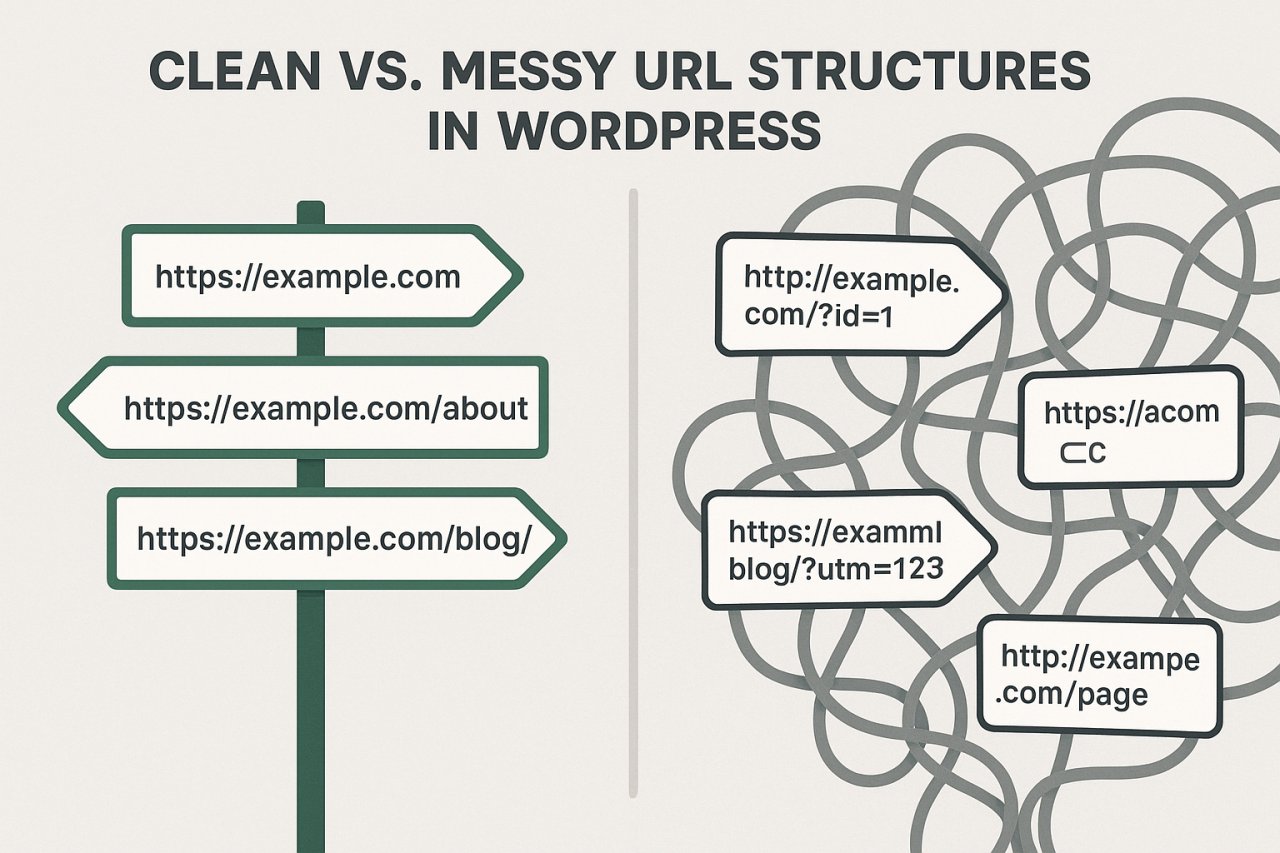
Look for inconsistencies. Mixed HTTPS and HTTP? URLs with and without www? Every variation Google sees dilutes your authority.
Check for parameter-heavy URLs too. If you see strings like ?utm_source= or ?ref= getting indexed, you’re wasting crawl budget on duplicate content. Use canonical tags or configure Google Search Console to ignore these parameters.
Internal Linking Architecture: The Silent Ranking Factor
Most WordPress sites treat internal links like an afterthought. You link when you remember, you don’t when you’re rushing to publish.
That’s a mistake. Internal link structure tells Google what matters. A page buried five clicks from the homepage? Google assumes it’s not important. A page linked from dozens of relevant posts? That’s a priority.
Find Your Link Distribution Problems
Run a crawl and export pages by inlink count. Sort descending. You’ll probably find your homepage, contact page, and privacy policy dominate. Meanwhile, your best content sits at 2-3 internal links.
This is backwards. Your high-performing blog posts and service pages should be the most linked. Your legal pages? Those can live with less link equity.
Identify High-Value Content With Zero Links
Cross-reference your crawl data with Google Analytics. Pull your top organic landing pages by traffic. Now check: how many internal links does each receive?
If a page drives traffic but has weak internal linking, you’re leaving rankings on the table. That page could rank higher with proper internal support.
You should also flip this: find pages with strong internal links but weak traffic. Either the content needs work, or you’re linking to the wrong pages.
Automate What You Can’t Scale Manually
For small sites (under 50 pages), manual internal linking is manageable. But once you’re publishing regularly, it becomes impossible to remember where every relevant link opportunity lives.
This is where automation saves you. Tools like AI Internal Links analyze your content and add contextually relevant links automatically. No spreadsheets, no missed opportunities. The plugin handles distribution, relevance, and even updates old posts when you publish new ones.
If you’re running an SEO audit and find orphaned pages or link distribution problems, automating your internal linking strategy fixes both issues permanently.
Performance Issues That Kill SEO
Google’s Core Web Vitals are ranking factors now. If your site feels sluggish, it’s probably bleeding rankings.
Check Largest Contentful Paint (LCP)
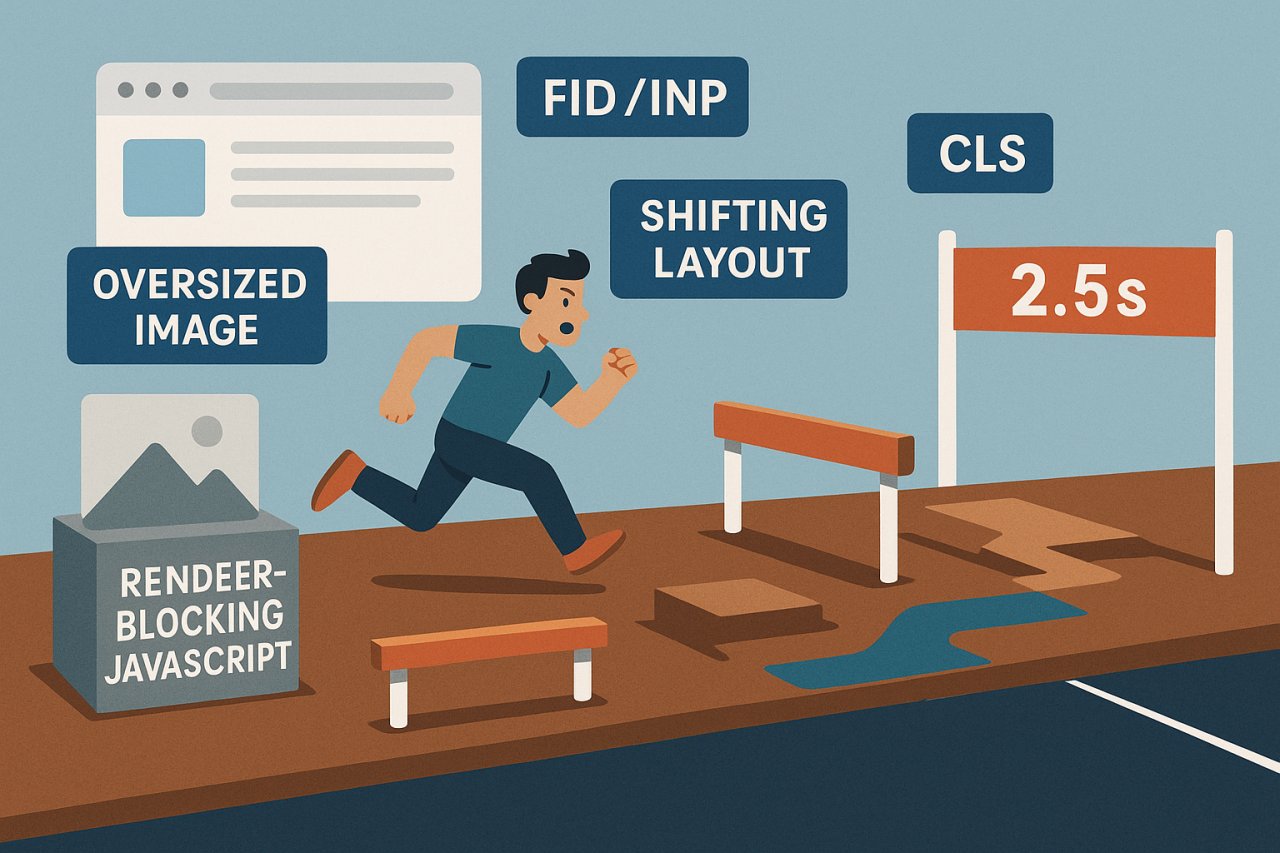
LCP measures load speed for the biggest visible element. Google wants this under 2.5 seconds. Most WordPress sites fail.
Common culprits: unoptimized images, render-blocking JavaScript, and bloated themes. Run PageSpeed Insights and look at the Opportunities section. It’ll tell you exactly what to fix first.
Images are usually the low-hanging fruit. If you’re serving full-resolution JPEGs on mobile, you’re torching load times for no reason. Use WebP format, lazy loading, and proper sizing.
First Input Delay (FID) and Interaction to Next Paint (INP)
These measure responsiveness. Can users click buttons immediately, or does the page freeze while JavaScript loads?
WordPress loves JavaScript. Every plugin adds more. Eventually, your site becomes a laggy mess.
Audit your plugins. Deactivate anything you’re not actively using. Check if your theme bundles libraries you don’t need — many include entire icon sets when you’re only using three icons.
Cumulative Layout Shift (CLS) Frustrates Users and Google
CLS happens when elements jump around while loading. You go to click a button, the page shifts, and you click an ad instead.
WordPress themes cause this by not reserving space for images or by loading fonts that change text size. Set explicit width and height attributes on images. Use font-display: swap in your CSS to prevent invisible text.
Security and Accessibility: Often Overlooked, Always Important
HTTPS Everywhere — No Exceptions
If any page serves over HTTP, fix it. Mixed content warnings destroy trust, and Google won’t rank pages that feel unsafe.
Check your database for hardcoded HTTP URLs. Plugins like Better Search Replace let you bulk-update URLs without breaking serialized data.
Accessibility Gaps Hurt Everyone
Accessibility and SEO overlap more than most people realize. Images without alt text? Google can’t read them either. Heading tags out of order? Screen readers and search crawlers both get confused.
Run your site through WAVE or Axe DevTools. Fix the easy stuff first: missing alt text, low contrast text, and empty links.
Structured Data: Tell Google What Your Content Means
Structured data (schema markup) helps Google understand your content beyond keywords. Articles, products, reviews, FAQs — there’s a schema type for everything.
WordPress doesn’t add structured data by default. You need a plugin or custom code.
Test Your Markup Before Publishing
Use Google’s Rich Results Test after adding schema. It’ll show exactly what Google sees and flag errors immediately.
Common mistakes: missing required fields, wrong date formats, and duplicate markup from stacking plugins. If two plugins both add Article schema, Google sees conflicting data and ignores it.
Ongoing Monitoring Beats One-Time Audits
The biggest mistake? Running an audit, fixing everything, then ignoring your site for six months.
Technical SEO isn’t one-and-done. New issues emerge constantly.
Set up alerts in Google Search Console for coverage errors and Core Web Vitals drops. Schedule monthly crawls with Screaming Frog to catch new problems early.
Track a few key metrics: average page load time, crawl error count, orphaned page count. If any of these spike, investigate immediately.
Document Your Fixes
Keep a simple spreadsheet: date, issue found, fix applied. When rankings change, you’ll know exactly what might have caused it.
This also prevents duplicate work. Nothing’s worse than rediscovering the same problem six months later because you forgot you already fixed it.
Technical SEO isn’t about checking boxes on a list. It’s about understanding how Google crawls your site and removing every friction point that slows it down.
Your WordPress site is a living system. Plugins update. Content publishes. URLs change. Every change introduces new technical debt.
The sites that dominate search aren’t necessarily the ones with perfect content. They’re the ones where Google never has to work hard to understand what’s there.
Start with Search Console. Fix the critical errors. Then build systems — automation, monitoring, regular audits — that keep technical problems from piling up again.
Because the best technical SEO audit is the one you never have to do twice.