
Table of Contents
- Why WordPress Sites Fail at Technical SEO
- Quick Win #1: Kill Crawl Budget Leaks with Strategic Noindex
- Quick Win #2: Fix Canonical Tag Chaos
- Quick Win #3: Generate a Clean XML Sitemap
- Quick Win #4: Maintain a Clean Internal Link Graph
- Quick Win #5: Enable Lazy Loading for Images
- Quick Win #6: Implement Structured Data with a Plugin
- Quick Win #7: Optimize Your Robots.txt for Crawl Efficiency
- Quick Win #8: Set Up Automatic Redirects
- Quick Win #9: Monitor Core Web Vitals with Real User Data
- The Compound Effect of Automated Technical SEO
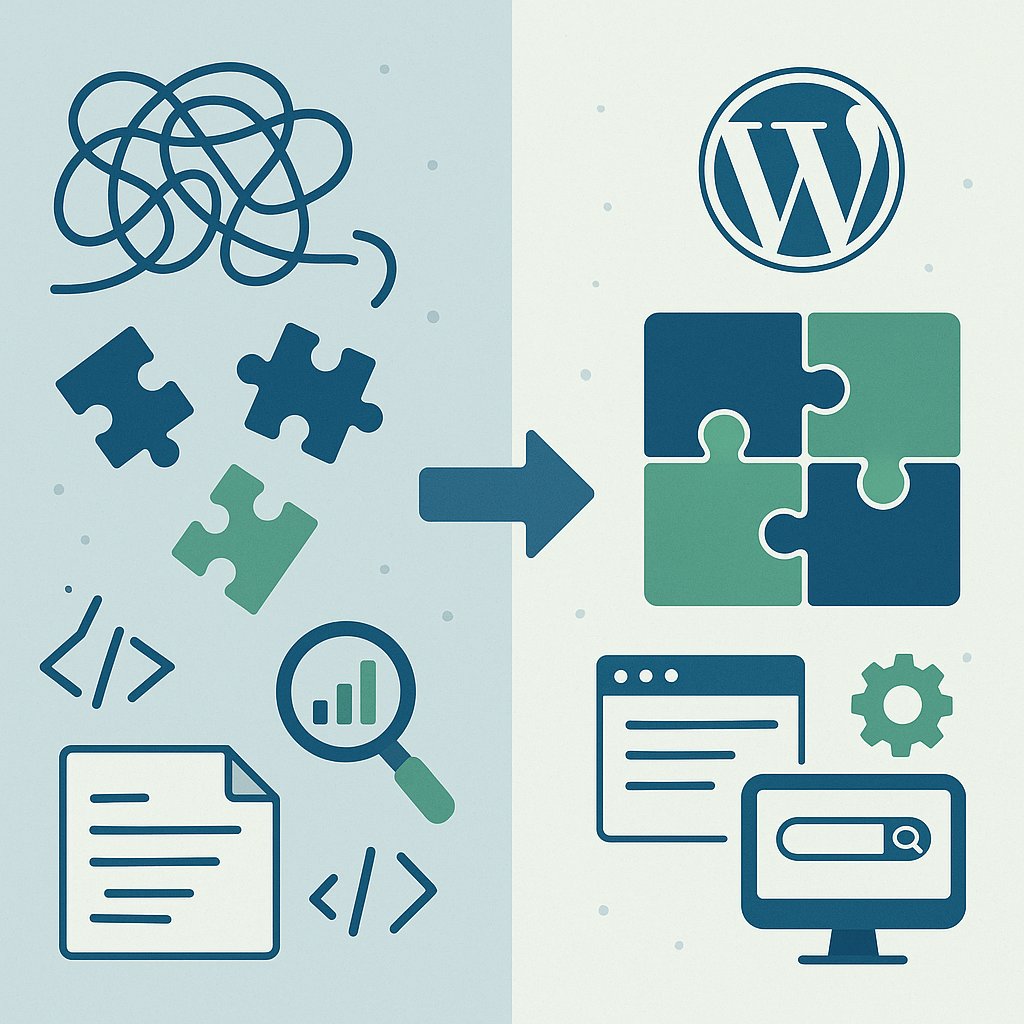
You don’t need weeks to fix technical SEO. You need the right sequence of wins and the discipline to automate what can be automated.
This isn’t theory. These are nine specific optimizations that move the needle on crawl efficiency, indexation speed, and Core Web Vitals — and every single one can be handled with a plugin, a setting toggle, or a five-minute configuration.
Why WordPress Sites Fail at Technical SEO
WordPress makes publishing easy. Too easy, sometimes.
You hit publish on post #437, and WordPress dutifully generates a page, adds it to your sitemap, and waits for Google to notice. But Googlebot doesn’t have infinite patience. If your site architecture is a maze, if your crawl budget gets wasted on tag archives and author pages nobody needs, your best content sits invisible.
The problem isn’t WordPress itself. It’s that the defaults optimize for ease of use, not search visibility. Every new post creates potential crawl waste. Every category creates another URL Google might prioritize over your money pages.
Fix the architecture once, automate the maintenance, and Google starts working for you instead of around you.
Quick Win #1: Kill Crawl Budget Leaks with Strategic Noindex
Identify Your Wasteful URLs
WordPress generates URLs you never asked for. Author archives when you’re a solo blogger. Tag pages that list two posts. Date-based archives that duplicate your blog index.
Google crawls them all. And every second spent there is a second not spent on your cornerstone content.
Open Google Search Console. Navigate to Coverage → Excluded. Look for patterns: /author/, /tag/, /page/2/. If you see hundreds of indexed pages with zero organic clicks, you’ve found your leak.
Automate the Fix
Yoast SEO and Rank Math both let you noindex entire post types and taxonomies with checkboxes. Go to Search Appearance, toggle off what you don’t need indexed.
For most sites, that means:
- Author archives (unless you run a multi-author publication)
- Date-based archives (nobody searches for “posts from March 2023”)
- Tag pages (if they’re just thinner versions of your category pages)
- Pagination beyond page 1 (set this in robots.txt or via plugin)
One configuration session. Permanent crawl budget savings.
Quick Win #2: Fix Canonical Tag Chaos
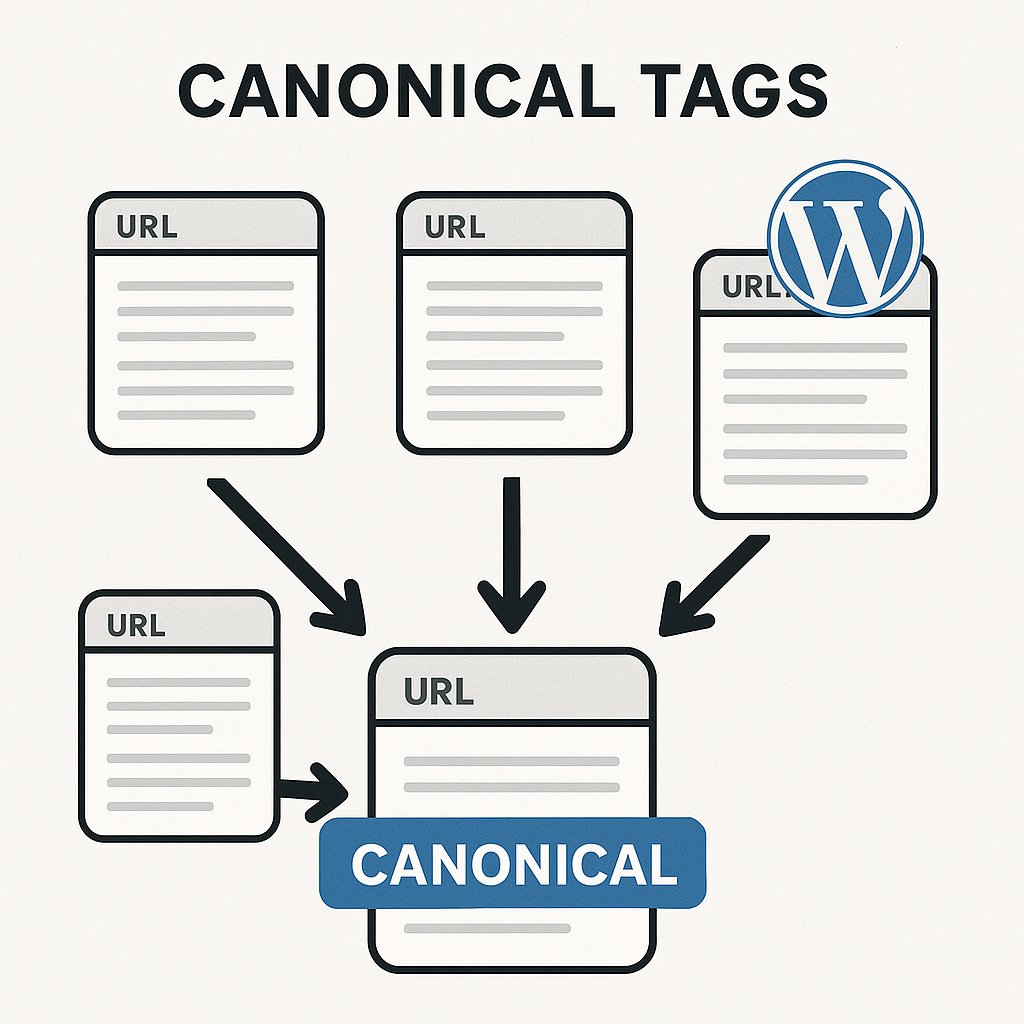
Canonical tags tell Google which version of a page is the real one. WordPress doesn’t always get this right out of the box.
Common WordPress Canonical Fails
Check these scenarios on your site. Pull up the page source (right-click → View Page Source) and search for rel='canonical'.
Your homepage should point to https://yourdomain.com/ — not /page/1/ or /blog/.
Category pages should self-reference when on page 1, then point back to page 1 from page 2 onwards.
Individual posts should never canonical to a category or archive.
If any of these are wrong, install Yoast or Rank Math. They normalize canonical tags automatically. The entire fix takes three minutes.
The Real Damage of Bad Canonicals
Google doesn’t throw an error when you mess up canonicals. It just ignores your intended primary URL and picks one itself. Often the wrong one.
I’ve seen WordPress blogs where the /page/2/ version of the homepage outranked the actual homepage because the canonical pointed nowhere useful. Fix this once, forget about it forever.
Quick Win #3: Generate a Clean XML Sitemap
Your sitemap isn’t just a checklist for Google. It’s a statement of priorities.
What Doesn’t Belong in Your Sitemap
If it’s noindexed, it shouldn’t be in your sitemap. If it’s a redirect, it shouldn’t be there. If it’s thin content you wouldn’t link to from your nav, leave it out.
Yet default WordPress sitemaps include everything. Tags, authors, attachment pages for images. Google crawls them, finds noindex tags, and marks them as errors in Search Console.
Automate Sitemap Cleanup
Yoast SEO’s sitemap settings let you exclude post types and taxonomies. Same with Rank Math. Turn off what you noindexed in step one.
For large sites with thousands of posts, use the “entries per sitemap” setting to keep individual sitemap files under 1,000 URLs. Google parses smaller files faster, and you avoid the 50MB file size limit.
Submit your cleaned sitemap to Search Console once. Google auto-checks it from there.
Quick Win #4: Maintain a Clean Internal Link Graph
Most WordPress sites have two internal linking problems: orphan pages and link distribution chaos.
An orphan page is any post or page with zero internal links pointing to it. Google can find it via your sitemap, but it has no context, no topical authority, and no crawl priority signal. It’s like publishing a page and forgetting to tell anyone it exists.
Why Orphan Pages Kill Your Crawl Budget
Googlebot allocates crawl budget based on link equity and importance signals. Orphan pages sit at the bottom of the queue. If you publish 50 posts a month and half of them are orphans, Google might take weeks to fully index your new content.
Every orphan page is a vote you’re not casting for your own content.
How to Find and Fix Orphans at Scale
Run a crawl with Screaming Frog or use Google Search Console’s “Links” report to identify pages with zero internal links. Then manually link to them from relevant posts — or let automation handle it.
Tools like AI Internal Links scan your content, identify orphan pages, and suggest contextual anchor text to insert automatically. For sites with hundreds of posts, this turns a week-long audit into a 20-minute setup.
Balancing Link Equity
Your homepage and a few popular posts tend to hoard internal links. Meanwhile, your deep content — the posts that target specific long-tail keywords — get linked to once or not at all.
Smart internal linking spreads authority. Link from popular posts to newer, related content. Create hub pages that anchor thematic clusters. Use varied, descriptive anchor text that helps Google understand context.
Automate the process so every new post gets wired into your link graph from day one.
Quick Win #5: Enable Lazy Loading for Images
The Core Web Vitals Connection
WordPress added native lazy loading in version 5.5. But it’s not always configured optimally, and Largest Contentful Paint (LCP) can still suffer if your above-the-fold images load lazily.
Lazy loading delays image load until the user scrolls near them. This saves bandwidth and speeds up initial page render. But if you lazy-load your hero image, LCP takes a hit.
Set It and Forget It
Most caching plugins (WP Rocket, LiteSpeed Cache) let you exclude above-the-fold images from lazy loading. Configure it once in settings, test with PageSpeed Insights, and you’re done.
For the rest of your images, lazy loading is a pure win. No manual implementation, no JavaScript library to install. Just toggle it on.
Quick Win #6: Implement Structured Data with a Plugin
Structured data isn’t optional anymore. It’s how Google understands what your content is about — and whether it deserves rich results.
Start with Schema for Articles
WordPress doesn’t add structured data by default. Install Schema Pro, Rank Math, or Yoast SEO and enable Article schema for blog posts. This takes two minutes.
You get:
- Author attribution (builds topical authority over time)
- Publish and modified dates (helps with freshness signals)
- Featured image metadata (improves appearance in Discover)
Test your output with Google’s Rich Results Test. If it validates, you’re done.
Don’t Overdo It
Some WordPress themes add broken or duplicate schema. Check your source code for multiple @type declarations or conflicting JSON-LD blocks. If you see them, disable schema in your theme settings and let your SEO plugin handle it exclusively.
Quick Win #7: Optimize Your Robots.txt for Crawl Efficiency
Your robots.txt file is the bouncer at the door. It decides which parts of your site Googlebot can enter — and which ones waste its time.
What to Block
WordPress generates URLs that serve the CMS but add zero SEO value. Block these in robots.txt:
/wp-admin/(already blocked by default)/wp-includes//wp-json/(unless you use REST API for public-facing content)?replytocom=(comment reply URLs that create duplicate content)*?s=(search result pages)
Yoast and Rank Math let you edit robots.txt directly from the WordPress dashboard. Add your Disallow rules, hit save, test at yourdomain.com/robots.txt.
Don’t Block What Google Needs
Never block /wp-content/ or your CSS and JavaScript files. Google needs to render your pages to evaluate Core Web Vitals and mobile usability. Blocking render resources tanks your rankings.
Quick Win #8: Set Up Automatic Redirects
Why Broken Links Hurt More Than You Think
Every time you delete or rename a post, you create a 404. Internal links break. External backlinks land on dead pages. Link equity evaporates.
WordPress doesn’t track URL changes out of the box. Change a post slug, and the old URL just dies.
Automate Redirect Management
Install Redirection or Rank Math (which includes redirect tracking). Both monitor URL changes and automatically create 301 redirects when you update a slug.
For bulk redirects, use Redirection’s import feature. Upload a CSV with old and new URLs, and it handles the rest.
Set it up once, and you’ll never manually lose link equity to a typo again.
Quick Win #9: Monitor Core Web Vitals with Real User Data
Lab Data Lies, Field Data Tells the Truth
PageSpeed Insights gives you lab scores. Those are controlled tests on a simulated device. Useful, but not what Google ranks you on.
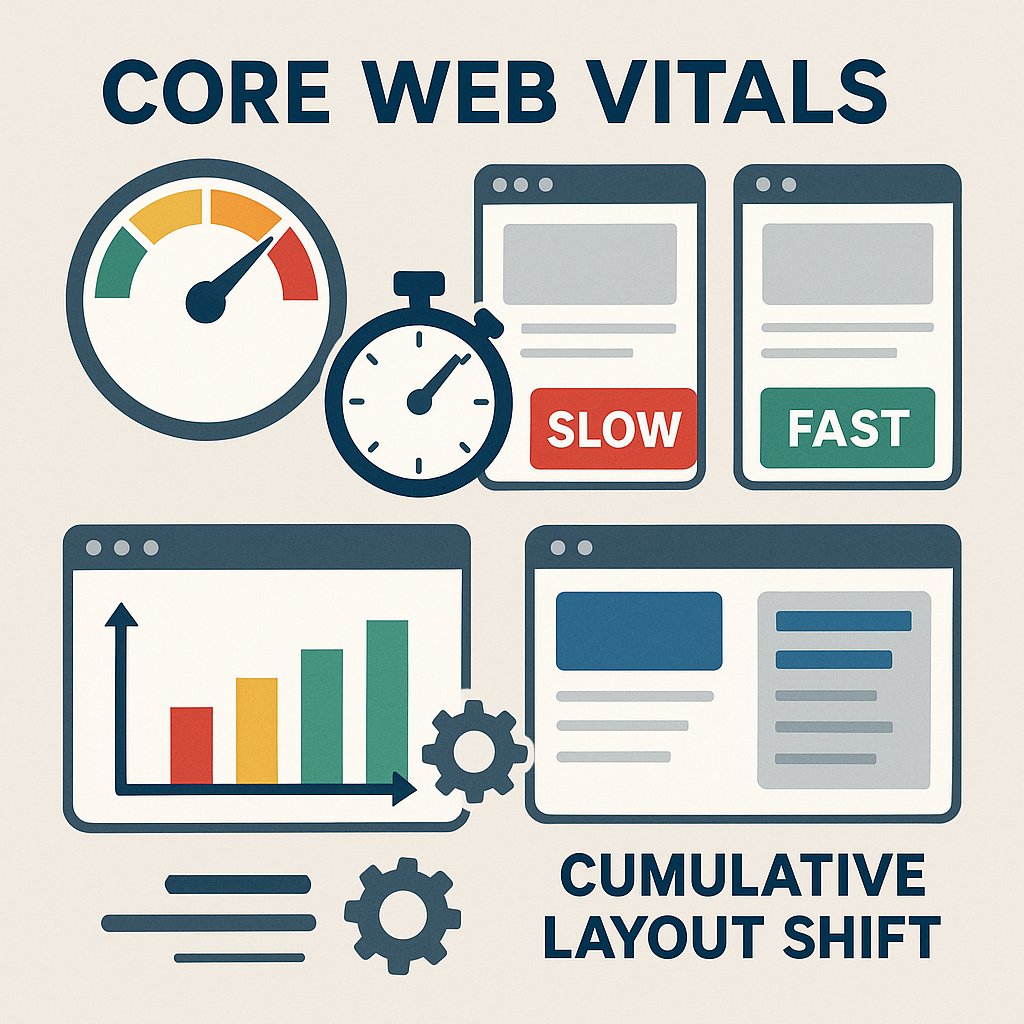
Core Web Vitals rankings use real user data from the Chrome User Experience Report (CrUX). If your actual visitors experience slow LCP or high Cumulative Layout Shift (CLS), your rankings suffer — even if lab tests look great.
Track the Right Metrics
Google Search Console shows Core Web Vitals data under “Experience.” Focus on:
- LCP under 2.5 seconds
- CLS under 0.1
- First Input Delay (FID) under 100ms
If URLs fail, investigate common causes: unoptimized images, render-blocking resources, missing width/height attributes on images (which cause layout shifts).
Most of these fixes are plugin-level. WP Rocket handles render-blocking CSS and JavaScript. ShortPixel or Imagify handles image optimization. Configure once, let them run.
The Compound Effect of Automated Technical SEO
None of these wins is revolutionary on its own. But together, they create a compounding advantage.
Your crawl budget isn’t wasted on orphan pages and duplicate URLs. Your internal link structure surfaces your best content. Your sitemap is clean. Your Core Web Vitals pass. Your schema is valid.
Google’s algorithm doesn’t see nine individual fixes. It sees a site that respects its crawler, understands how search engines work, and deserves to rank.
Technical SEO isn’t about perfection. It’s about removing the friction between your content and Google’s ability to understand it.
Most WordPress sites never get here. Not because the optimizations are hard, but because they treat technical SEO like a one-time project instead of an automated system.
Set it up once. Let plugins and settings do the ongoing work. Then focus on what actually grows traffic: creating content that answers real questions and building authority in your niche.
That’s where the rankings come from.