

Table of Contents
- Why WordPress Performance Actually Matters for SEO
- The Hidden Performance Killers Most WordPress Sites Miss
- Caching: The Fastest Win You’ll Get Today
- How Internal Linking Architecture Affects Performance
- Core Web Vitals Optimization Without Developer Help
- Quick Wins You Can Implement Right Now
- Performance Is an Ongoing SEO Strategy
WordPress performance isn’t just about making visitors happy anymore — it’s a direct ranking factor Google measures with cold precision. The good news? You don’t need a developer to fix it. Most performance wins come from strategic decisions, not code.
Why WordPress Performance Actually Matters for SEO
Site speed stopped being a nice-to-have in 2021 when Google made Core Web Vitals an official ranking signal. But here’s what most guides miss: performance impacts SEO through multiple channels simultaneously.
A fast site doesn’t just rank better because Google says so. It keeps users engaged longer, reduces bounce rates, and increases pages per session — all behavioral signals Google tracks religiously.
Google’s Core Web Vitals Are Non-Negotiable
Three metrics now determine whether Google considers your site technically adequate: Largest Contentful Paint (LCP), First Input Delay (FID), and Cumulative Layout Shift (CLS). These aren’t suggestions.
Miss these thresholds and you’re fighting with one hand tied. Your content might be brilliant, but Google deprioritizes slow experiences in competitive SERPs. The cutoff is binary: pass or fail.
Speed Impacts User Signals Google Tracks
When your WordPress site loads in under two seconds, something interesting happens. Bounce rate drops. Time on site climbs. Pages per session increases.
Google doesn’t need to be told your site is good — user behavior tells the story. A slow site trains visitors to leave immediately, which tanks your rankings even if you technically pass Core Web Vitals.
The Hidden Performance Killers Most WordPress Sites Miss
Everyone knows images slow sites down. But the real performance drains hide in places people don’t check.
Bloated Themes and Page Builders
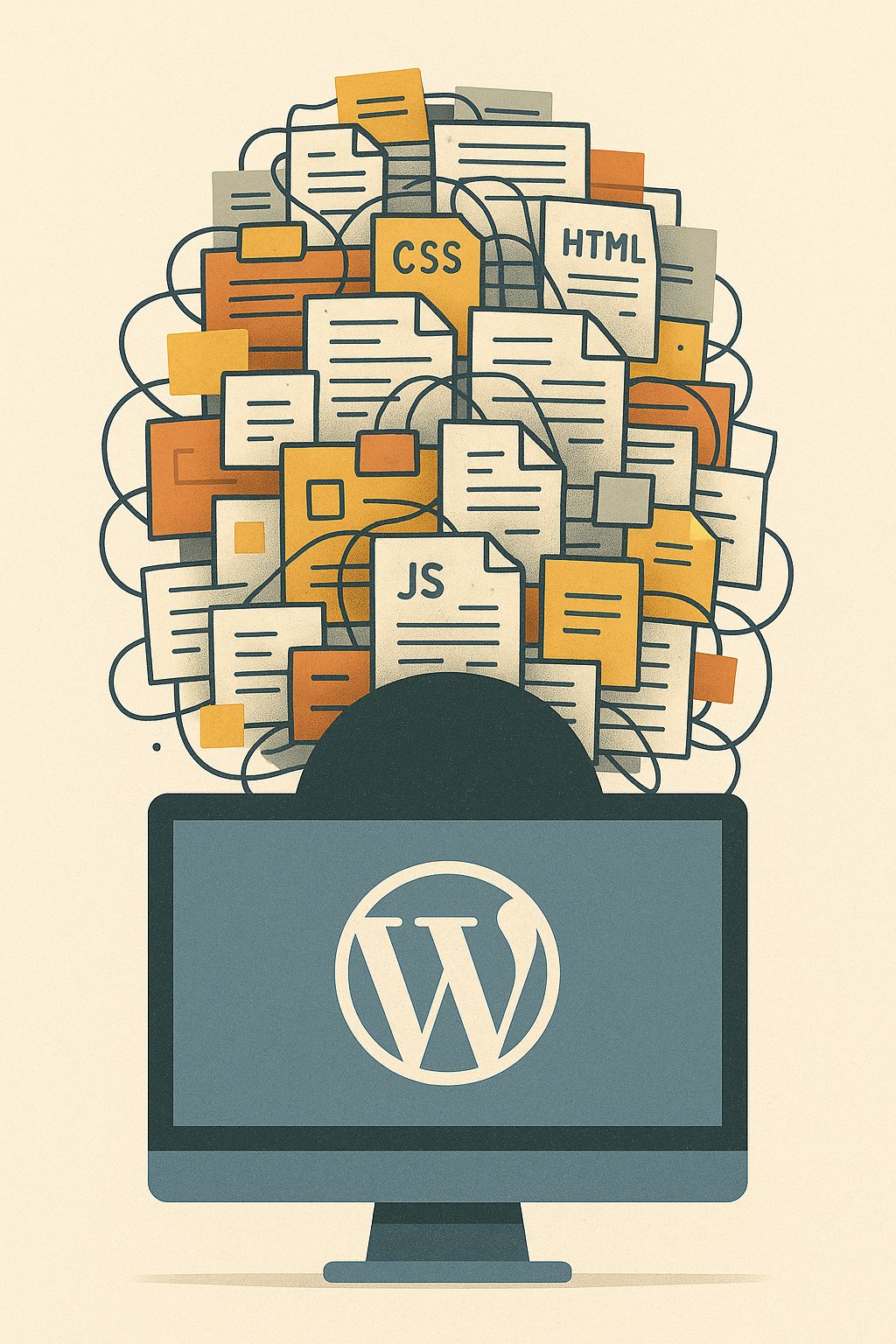
That beautiful multipurpose theme promising 500+ demos? It’s loading CSS and JavaScript for features you’ll never use. Every. Single. Page.
Elementor, Divi, and WPBakery make design easy but ship massive frontend assets by default. A typical Elementor page loads 400KB+ of CSS before displaying a single word. That’s not optimization — that’s technical debt.
Switch to a lightweight theme like GeneratePress or Kadence. You’ll shed 70% of your CSS overhead immediately.
Unoptimized Images Still Everywhere
WordPress now generates WebP images automatically as of version 6.1. Most sites still serve bloated JPEGs because they uploaded images before the update.
Run a quick audit: right-click any image and check the file extension. If you see .jpg on a post from 2024 or later, you’re leaving speed on the table. Regenerate thumbnails with a plugin like Regenerate Thumbnails or ShortPixel.
Too Many HTTP Requests
Every plugin adds scripts. Social sharing buttons, analytics trackers, font loaders, chat widgets — they pile up fast.
Open your browser console and count network requests. If you’re over 50 requests for a basic blog post, start deleting plugins. Each HTTP request adds latency. Trim ruthlessly.
Caching: The Fastest Win You’ll Get Today
If you do one thing after reading this, enable caching. Nothing else delivers comparable speed gains for zero effort.
What Caching Actually Does
WordPress rebuilds every page from scratch on every visit by default. That means database queries, PHP execution, theme rendering — the full cycle.
Caching stores the final HTML and serves it instantly to the next visitor. No database. No PHP. Just static HTML delivered at network speed. Your server breathes. Your visitors see content in milliseconds.
Best Caching Plugins for WordPress
WP Rocket is worth the $59. Full stop.
It handles page caching, database optimization, lazy loading, and minification with a single checkbox interface. No developer knowledge required. Install it, click three buttons, and watch your PageSpeed score jump 30 points.
Free alternative? WP Super Cache works but requires manual configuration. LiteSpeed Cache is excellent if your host runs LiteSpeed servers (check with them first).
One critical detail: exclude logged-in users from caching or you’ll serve the same content to everyone. WP Rocket handles this automatically. Other plugins need manual rules.
How Internal Linking Architecture Affects Performance
This is where most WordPress performance guides go silent. Internal links seem innocent — how could they slow anything down?
They can’t. But they can waste the crawl budget Google allocates to your site, which indirectly hurts your SEO performance.
Inefficient Links Waste Crawl Budget
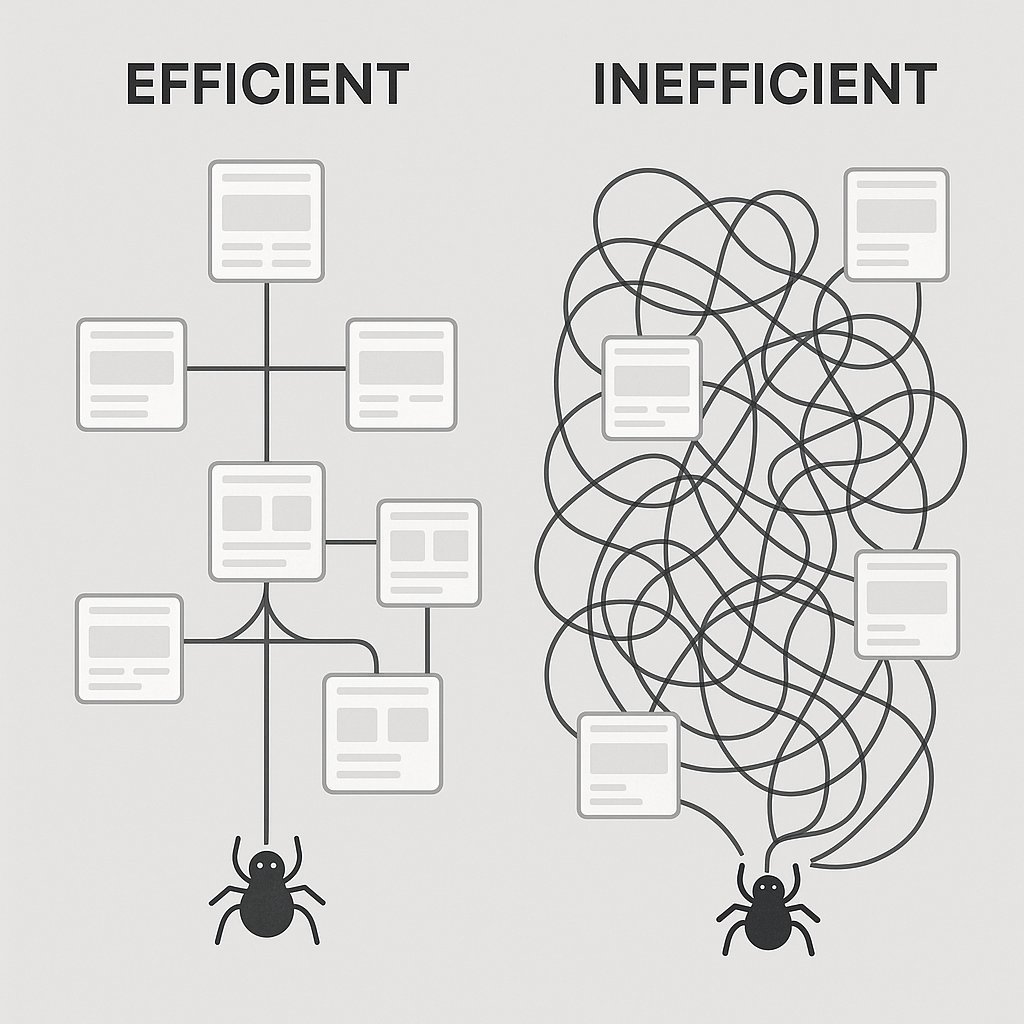
Google crawls your site with a fixed budget of time and resources. Every link is a potential crawl path. If your internal linking structure is chaotic — orphan pages, circular links, dead ends — Google wastes that budget crawling junk instead of your best content.
A clean, logical internal linking architecture guides crawlers to your most important pages first. That means faster indexing, better ranking distribution, and more efficient use of Google’s attention.
Automating Smart Internal Links
Manual internal linking breaks down at scale. You publish 50 articles and forget which ones link where. Important content gets orphaned. New posts don’t link to cornerstone pages.
Tools like AI Internal Links solve this by analyzing your content semantically and suggesting contextual links automatically. It’s not about stuffing links everywhere — it’s about building logical topical clusters that help both users and crawlers navigate efficiently.
The performance angle? When your internal linking is strategic, Google spends less time figuring out your site structure and more time indexing your content. Crawl efficiency improves, which indirectly boosts how quickly new content ranks.
Core Web Vitals Optimization Without Developer Help
Let’s get specific. Each Core Web Vital has distinct fixes you can implement without touching code.
Largest Contentful Paint (LCP)
LCP measures how long it takes for the largest visible element to render. Usually that’s your hero image or a big headline.
Fix #1: Preload your hero image. Add this to your header: <link rel='preload' as='image' href='hero.jpg'> (replace with your actual image path).
Fix #2: Use a CDN. Cloudflare’s free tier works. Your images load from a server near the visitor instead of your origin server in Dallas.
Fix #3: Lazy load everything except above-the-fold content. WP Rocket handles this automatically. Your LCP element should never be lazy-loaded.
First Input Delay (FID)
FID tracks how quickly your site responds to the first user interaction — a click, tap, or key press.
The main culprit? JavaScript blocking the main thread. When a heavy script runs, nothing else can execute. Your site feels frozen.
Defer non-critical JavaScript. WP Rocket and Autoptimize both offer one-click JavaScript deferral. Test carefully — some scripts break when deferred (like certain ad networks).
Cumulative Layout Shift (CLS)
CLS measures visual stability. Ever clicked a button just as an ad loads and pushes everything down? That’s layout shift, and Google hates it.
Reserve space for ads and images. Set explicit width and height attributes on every <img> tag. WordPress does this automatically now, but older posts need manual fixes.
For ads: wrap them in containers with fixed dimensions. If your ad network serves different sizes, set the container to the largest possible size.
Quick Wins You Can Implement Right Now
Before you dive into complex optimization, knock out these fast wins. Total time investment: 30 minutes. Impact: substantial.
Clean Up Your Database
WordPress stores every post revision, spam comment, and trashed item forever. Your database bloats.
Install WP-Optimize (free). Run the database cleanup. Delete post revisions older than 30 days, purge spam comments, and remove transient options. Your database shrinks by 40% on average, which speeds up queries.
Lazy Load Everything
Images, iframes, videos — if they’re below the fold, lazy load them. The browser only loads what’s visible, which cuts initial page weight by 60-70%.
WordPress has native lazy loading for images since version 5.5, but it doesn’t cover iframes. Use a plugin like Lazy Load by WP Rocket (free, separate from WP Rocket) to cover everything.
Remove Unused Plugins
Deactivating isn’t enough. Deactivated plugins often leave database tables and load remnant scripts.
Go through your plugin list right now. Anything you haven’t touched in three months? Delete it. Not deactivate — delete. You can reinstall later if needed.
Every plugin is a potential point of failure and a definite performance cost. Treat your plugin roster like a team — only keep MVPs.
The performance gap between a 15-plugin WordPress site and a 40-plugin site is measurable in seconds. Audit ruthlessly.
Performance Is an Ongoing SEO Strategy
Optimizing WordPress performance isn’t a one-time project. Themes update. Plugins change. Google adjusts Core Web Vitals thresholds.
Set a recurring calendar reminder: first Monday of each month, run PageSpeed Insights on your three most important pages. Track your scores. When something drops, investigate immediately.
The sites that dominate search results in 2026 aren’t just well-written — they’re technically excellent. Speed is the baseline. Everything else builds on that foundation.