

Table of Contents
- What Core Web Vitals Actually Measure (And Why They Matter)
- The WordPress-Specific Problems That Kill Core Web Vitals
- How to Fix LCP on WordPress Sites
- How to Fix INP and Reduce Input Delay
- How to Fix CLS and Prevent Layout Shift
- The Internal Linking Strategy That Improves Core Web Vitals
- Tools and Plugins for Ongoing Core Web Vitals Monitoring
- Common Mistakes That Sabotage Core Web Vitals
- The Long-Term Approach to Core Web Vitals
Core Web Vitals aren’t abstract metrics. They measure real user frustration: pages that jump around while loading, buttons that don’t respond, images that take forever to appear. Google started weighting these signals heavily in rankings because they correlate directly with user satisfaction.
Here’s the problem: WordPress sites, by default, are terrible at Core Web Vitals. Between bloated themes, poorly optimized images, and render-blocking scripts, most WordPress installs fail at least one Core Web Vital metric straight out of the box.
The good news? You can fix this. And you don’t need to be a developer.
What Core Web Vitals Actually Measure (And Why They Matter)
Core Web Vitals boil down to three metrics. Each one targets a specific moment of user frustration.
Largest Contentful Paint (LCP) measures how long your main content takes to load. Google wants this under 2.5 seconds. If your hero image or main headline takes 4 seconds to appear, users are already considering the back button.
First Input Delay (FID) — now being replaced by Interaction to Next Paint (INP) — measures responsiveness. When someone clicks a button or taps a menu, how long before the page reacts? Google wants under 100 milliseconds. Anything over 300ms feels broken.
Cumulative Layout Shift (CLS) measures visual stability. You know that moment when you’re about to click a link, then an ad loads and shifts everything down so you click the wrong thing? That’s layout shift. Google wants a CLS score under 0.1.
Most WordPress sites fail on at least two of these. Why? Because themes prioritize aesthetics over performance, plugins pile on scripts without caring about load order, and images get uploaded at full resolution straight from a camera.
How Google Uses These Metrics in Rankings
Core Web Vitals became a confirmed ranking factor in 2021. Google doesn’t penalize you directly for poor scores — but when two pages are otherwise equal, the one with better vitals wins. And in competitive niches, that edge matters.
More importantly, poor Core Web Vitals kill your conversion rates. Users bounce faster, engage less, and trust your site less. So even if rankings stayed flat, you’d still lose traffic quality.
The WordPress-Specific Problems That Kill Core Web Vitals
WordPress wasn’t built for 2026’s performance standards. It evolved from a blogging platform, and that legacy shows in how it handles modern web performance.
Themes Ship With Massive CSS and JavaScript Files
Most commercial WordPress themes include every possible feature because they need to work for thousands of different use cases. Sliders, animations, lightboxes, contact forms — all bundled in, whether you use them or not.
This creates render-blocking resources. Your browser downloads all this CSS and JavaScript before it can paint anything on screen. That delays LCP.
Images Get Uploaded Without Optimization
WordPress auto-generates thumbnails, but it doesn’t compress images aggressively by default. A 3MB hero image might display at 800px wide, but the full file still loads. That’s wasted bandwidth directly harming LCP.
Worse: many themes don’t implement proper lazy loading, so images below the fold load immediately even though users never see them.
Plugins Add Scripts to Every Page
Contact Form 7 loads its JavaScript on every single page — even pages without a form. Yoast SEO adds schema markup scripts site-wide. Each plugin assumes it’s the only one doing this, but when you have 20 plugins, you’re loading 20 sets of scripts.
This destroys both LCP and INP. The browser spends so much time parsing JavaScript that it can’t respond to user input.
Poor Internal Link Architecture Increases Bounce Rates
Here’s one most people miss: weak internal linking makes users hit dead ends. When someone lands on a blog post, reads it, and finds no clear next step — they bounce. High bounce rates signal to Google that your content didn’t satisfy the user’s intent.
Strong internal linking creates natural pathways through your site. Users stay longer, engage deeper, and that behavioral data reinforces your Core Web Vitals improvements. You can’t optimize vitals in isolation — you need to guide users through content they actually want to consume.
How to Fix LCP on WordPress Sites
Largest Contentful Paint fails when your critical content loads too slowly. The fix involves identifying what’s slow, then eliminating the bottlenecks.
Identify Your LCP Element First
Open Chrome DevTools (right-click → Inspect), go to the Performance tab, and record a page load. Chrome highlights your LCP element — usually a hero image, headline, or text block.
Knowing which element Google measures lets you optimize the right thing. Don’t waste time compressing footer images if your hero image is the LCP element.
Optimize Images Properly
Convert images to WebP format. WordPress 5.8+ supports WebP natively, but you’ll need a plugin like ShortPixel or Imagify to convert existing images in bulk.
Serve images at the correct size. If your LCP image displays at 1200px wide, don’t serve a 4000px version. Use WordPress’s srcset attributes or a CDN that automatically resizes.
Preload your LCP image. Add this to your theme’s header.php:
<link rel=’preload’ as=’image’ href=’your-lcp-image.webp’>
This tells the browser to fetch the LCP image immediately, before parsing CSS or JavaScript.
Remove Render-Blocking Resources
Use a plugin like WP Rocket or Autoptimize to defer non-critical JavaScript. This loads your visual content first, then executes scripts after the page is visible.
Inline critical CSS. Extract the CSS needed to render above-the-fold content and embed it directly in the HTML. Load the rest asynchronously. WP Rocket automates this.
Disable unused plugin features. If you’re using Elementor but only for basic layouts, disable animations and fancy widgets that add extra CSS.
Upgrade Your Hosting
Shared hosting kills LCP. Server response time (Time to First Byte) should be under 600ms. On cheap shared hosting, it’s often 2+ seconds.
Switching to managed WordPress hosting like Kinsta or WP Engine typically cuts TTFB by 50-70%. If that’s outside your budget, a good VPS with LiteSpeed or Nginx performs better than shared hosting for the same price.
How to Fix INP and Reduce Input Delay
Interaction to Next Paint replaced FID as the official metric in 2024. It measures how quickly your page responds to all user interactions, not just the first one.
Identify Long Tasks Blocking the Main Thread
In Chrome DevTools, the Performance tab shows long tasks — JavaScript executions taking over 50ms. These block the main thread, preventing the browser from responding to clicks.
Common culprits: Google Analytics, Facebook Pixel, large slider libraries, and poorly coded theme JavaScript.
Defer Non-Essential JavaScript
Most JavaScript doesn’t need to run immediately. Analytics scripts, social media embeds, and chat widgets can wait until the page is interactive.
WP Rocket’s “Load JavaScript Deferred” option handles this automatically. For manual control, add the defer attribute to script tags:
<script src=’your-script.js’ defer></script>
Reduce Third-Party Scripts
Every third-party script is a gamble. Google Tag Manager, heatmap tools, A/B testing platforms — they all add latency you can’t control.
Audit your scripts. Anything not directly driving revenue or essential functionality should go. Use Cloudflare’s Zaraz to load third-party scripts without blocking the main thread.
Use a Lightweight Theme
GeneratePress and Kadence are built for performance. They ship with minimal JavaScript and give you granular control over what loads where.
Divi and Avada, while feature-rich, load 10x more JavaScript. If you’re serious about INP, switching themes might be unavoidable.
How to Fix CLS and Prevent Layout Shift
Cumulative Layout Shift happens when elements move after the page initially renders. It’s infuriating for users and easy to fix once you know where it’s happening.
Reserve Space for Images and Ads
Set explicit width and height attributes on all images. Modern browsers use these to reserve space before the image loads, preventing shift.
- Set image dimensions in HTML: <img src=’image.jpg’ width=’800′ height=’600′>
- Use aspect-ratio CSS for responsive images: aspect-ratio: 16 / 9;
- Allocate fixed space for ad slots before ads load
Google AdSense is a major CLS culprit. Use fixed-height containers for ad units so they don’t push content down when they load.
Avoid Injecting Content Above Existing Content
Cookie notices, announcement bars, and discount popups that push content down cause CLS. Load them in a fixed position (like a sticky header) or reserve space in the initial layout.
If you must inject content, do it below the fold where users haven’t scrolled yet.
Preload Web Fonts
When custom fonts load late, text re-renders and shifts layout. Preload critical fonts:
<link rel=’preload’ as=’font’ type=’font/woff2′ href=’your-font.woff2′ crossorigin>
Or use font-display: swap in your CSS to show system fonts immediately while web fonts load in the background.
The Internal Linking Strategy That Improves Core Web Vitals
This is the piece most performance guides ignore: user behavior impacts how Google perceives your Core Web Vitals.
When users land on a page, engage deeply, and navigate naturally to related content, they send positive behavioral signals. Lower bounce rates, higher pages per session, longer dwell time — these metrics reinforce that your site delivers value.
Poor internal linking creates dead ends. Users land, read, find nothing else relevant, and leave. Even if your LCP is perfect, that bounce signals poor experience.
Build Topic Clusters to Guide User Flow
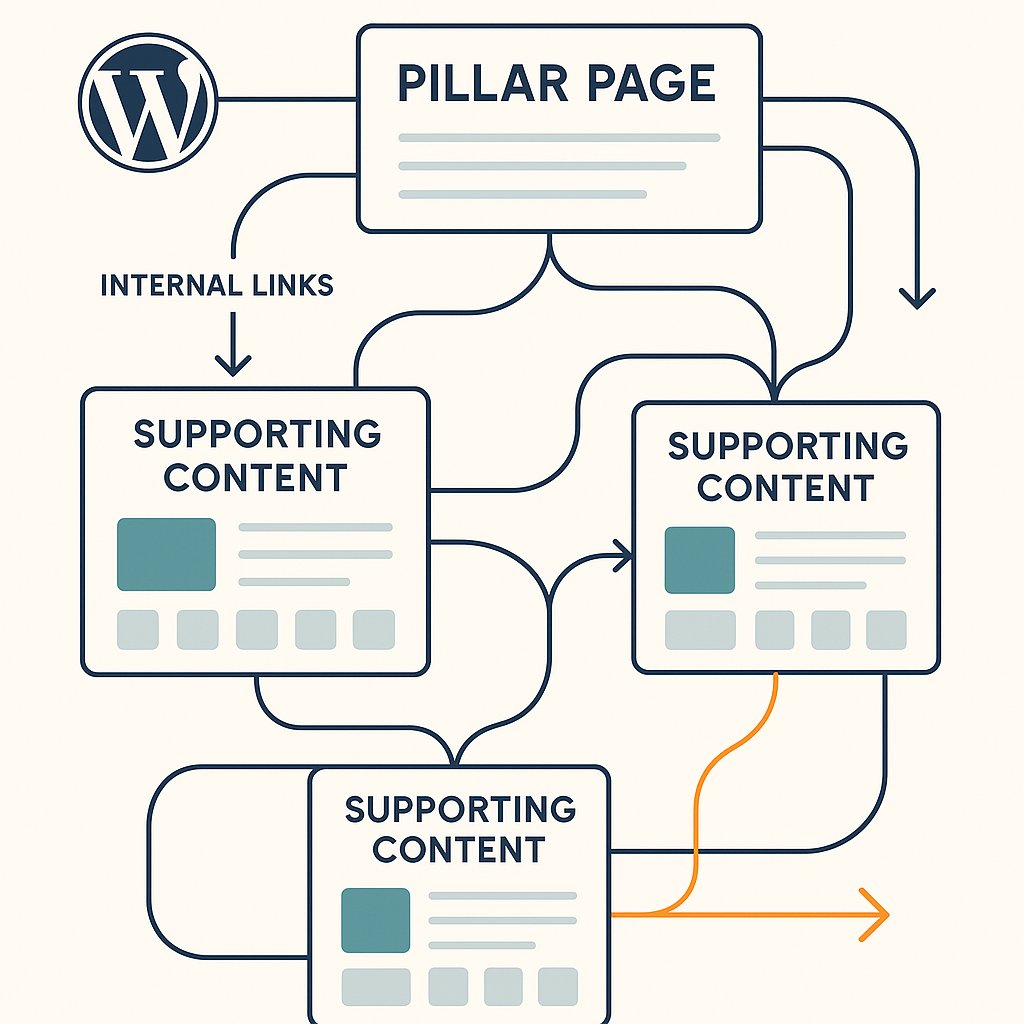
Group related content into clusters: a pillar page covering a broad topic, with supporting articles diving into specifics. Link aggressively between them.
For example, a pillar page on “WordPress Performance” links to articles on caching, image optimization, and hosting. Each supporting article links back to the pillar and to related pieces.
This keeps users moving through your site instead of bouncing after one page.
Automate Internal Linking to Scale This Strategy
Manually adding internal links across hundreds of posts is impractical. Tools like AI Internal Links automate this by analyzing your content and suggesting relevant connections based on context.
Automation ensures consistency. Every new post gets linked into your existing structure without manual audits. That’s especially valuable for large content catalogs where manual linking becomes impossible.
Use Descriptive Anchor Text
Don’t link with “click here” or “read more.” Use anchor text that describes the destination: “learn how to optimize WordPress images” or “see our complete caching guide.”
Descriptive anchors help users decide whether to click, reducing bounces caused by mismatched expectations.
Tools and Plugins for Ongoing Core Web Vitals Monitoring
Optimization isn’t one-and-done. Core Web Vitals fluctuate as you add content, update plugins, or change themes.
Google Search Console
The Core Web Vitals report shows which URLs fail or need improvement. It’s based on real user data from Chrome users visiting your site — the same data Google uses for rankings.
Check this weekly. Sudden drops often correlate with plugin updates or theme changes.
PageSpeed Insights
Run individual URL tests to get specific recommendations. PageSpeed Insights combines lab data (simulated loads) with field data (real users).
Focus on field data first. Lab data is useful for testing, but Google ranks you based on real user experience.
Web Vitals Chrome Extension
This extension shows LCP, CLS, and INP in real-time as you browse your site. It’s the fastest way to spot issues during development or after updates.
WP Rocket for WordPress-Specific Optimization
WP Rocket handles caching, minification, lazy loading, and critical CSS generation through a simple interface. It’s worth the $59. Full stop. The time you’d spend configuring free alternatives costs more than the license.
For image optimization, pair it with ShortPixel or Imagify. For advanced users, combine WP Rocket with a CDN like Cloudflare or BunnyCDN.
Common Mistakes That Sabotage Core Web Vitals
Even with the right tools, these mistakes undermine your optimization efforts.
Over-Optimizing at the Expense of Functionality
Deferring all JavaScript can break forms, sliders, or checkout flows. Test every optimization in a staging environment before pushing to production.
If deferring a script breaks functionality, exclude it from optimization and defer everything else.
Ignoring Mobile Performance
Google’s rankings prioritize mobile Core Web Vitals. Your desktop score might be perfect while mobile fails — and most users are on mobile.
Always test on actual devices. Chrome DevTools mobile simulation isn’t accurate enough for final validation.
Not Measuring Real User Impact
Lab tests show potential, but real users experience different conditions: slow networks, older devices, different geographic locations.
Use Real User Monitoring (RUM) through tools like SpeedCurve or Cloudflare’s Web Analytics to see what actual visitors experience.
The Long-Term Approach to Core Web Vitals
Core Web Vitals optimization isn’t a checklist you complete once. It’s an ongoing discipline.
Every plugin you add, every theme update you install, every new feature you launch — they all impact performance. Build performance testing into your workflow. Before activating a new plugin, test it on staging and check PageSpeed Insights. If it tanks your scores, find an alternative.
The sites that win on Core Web Vitals treat performance as a feature, not an afterthought. They choose lightweight themes, audit plugins regularly, and optimize images by default.
Most importantly, they understand that technical performance enables better user experience. Fast sites keep users engaged. Engaged users convert better. Better conversions justify the investment in optimization.
Your Core Web Vitals scores are a proxy for user satisfaction. Fix them, and you’re not just chasing a ranking factor — you’re building a site people actually enjoy using.