

Table of Contents
- What Makes a Page Orphaned
- How Orphan Pages Kill Your SEO Performance
- How to Find Orphan Pages in WordPress
- A Practical Workflow for Fixing Orphan Pages
- Advanced Fixes for Persistent Orphan Issues
- Measuring the Impact of Your Orphan Page Fixes
- Common Mistakes When Fixing Orphan Pages
- Final Take: Make Internal Linking a Publishing Habit
Most site owners discover orphan pages by accident — a sudden traffic drop, a missing page in Search Console, or worse, finding out a key landing page hasn’t been crawled in months. By then, the damage is done.
Here’s the brutal truth: if Google can’t reach a page by following links, it probably won’t index it. Your sitemap might list it, but crawlers prioritize pages they can discover naturally through your site’s link structure. Orphans get shoved to the back of the queue.
What Makes a Page Orphaned
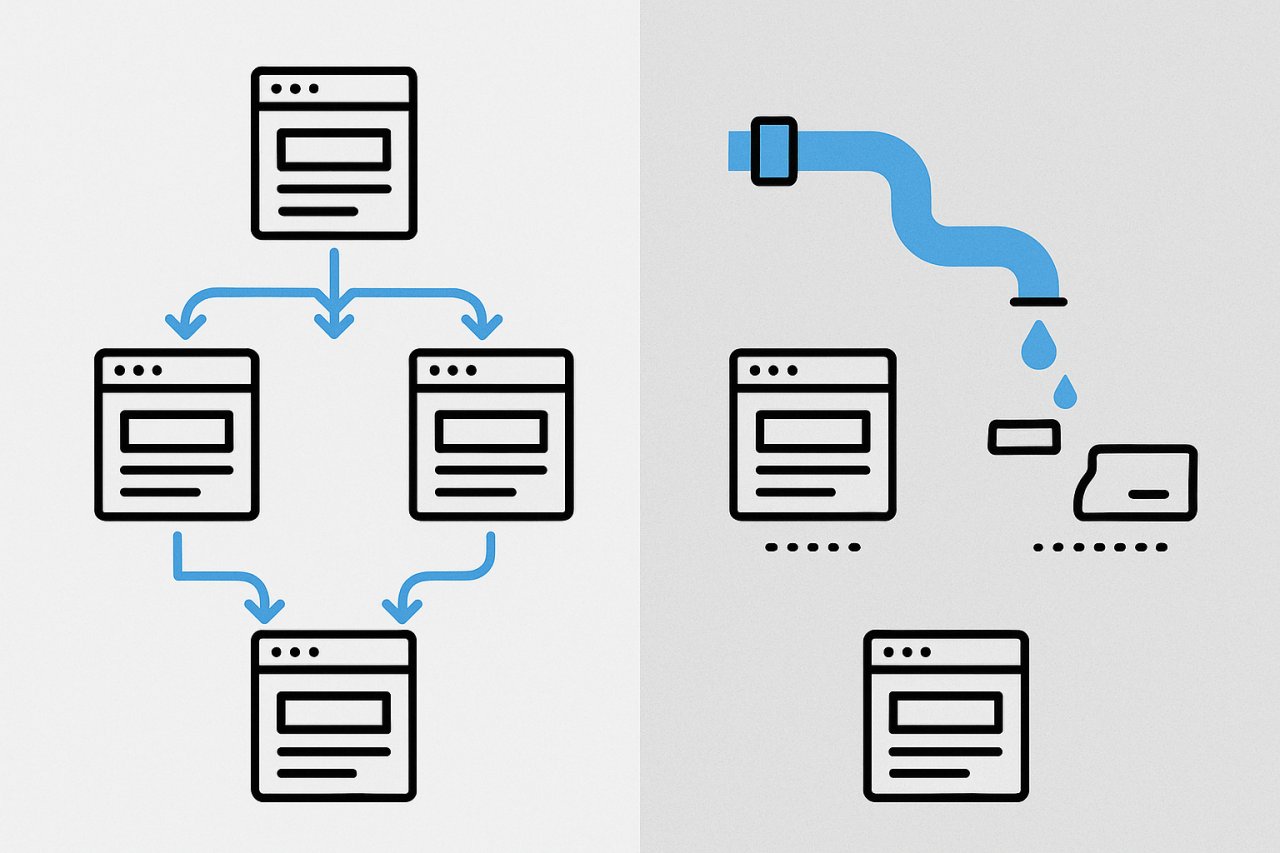
An orphan page is any URL on your site that has zero internal links pointing to it from other pages. It exists in your database. It loads fine when you visit it directly. But there’s no path to reach it by clicking through your site.
Think of your website as a city. Your homepage is the main square, category pages are boulevards, and individual posts are houses. An orphan page? That’s a house with no roads leading to it. Technically it exists, but nobody’s visiting.
Common Ways Pages Become Orphans
You don’t deliberately create orphan pages. They happen through normal site management:
- Publishing new content without linking to it from existing posts
- Removing a navigation menu item or sidebar widget
- Deleting a category page that was the only link source
- Migrating content and missing redirect connections
- Importing posts from another CMS without rebuilding link relationships
WordPress makes it easy to publish. It doesn’t force you to link properly.
Why This Matters More Than You Think
Google allocates a crawl budget to every site — a limit on how many pages it’ll crawl in a given timeframe. Large sites with thousands of URLs hit this ceiling regularly. When Googlebot lands on your homepage, it follows links to discover content. Pages buried five clicks deep? They get crawled less often. Pages with no links at all? They might never get crawled.
Even if Google eventually finds an orphan through your XML sitemap, it treats that URL differently. Pages discovered only via sitemap carry less authority signals than those woven into your site’s natural architecture.
How Orphan Pages Kill Your SEO Performance
The damage isn’t theoretical. Orphan pages create three specific problems that hurt rankings:
Crawlability Breaks Down
Googlebot doesn’t crawl your sitemap line by line. It follows links. When you’ve got 20% of your pages orphaned, you’re forcing Google to choose between crawling naturally (and missing those pages) or relying entirely on your sitemap (which it doesn’t prioritize).
The result? Slower indexation, delayed updates, and important pages that fall out of the index during routine crawls.
PageRank Stops Flowing
Internal links distribute PageRank — Google’s measure of page importance based on link equity. When a page has no incoming links, it receives zero internal PageRank. That means even if it eventually gets indexed, it starts with a massive ranking handicap.
You could have the best content on a topic, but if it’s an orphan, it won’t outrank mediocre pages that are properly linked.
User Experience Takes a Hit
Orphan pages don’t just confuse Google — they frustrate users. Imagine someone landing on a blog post from search, wanting to explore related content, but finding no relevant internal links. They bounce. Your engagement metrics drop. Google notices.
How to Find Orphan Pages in WordPress
You can’t fix what you can’t see. Here’s how to surface every orphan page on your site:
Method 1: Screaming Frog Site Crawl
Download Screaming Frog SEO Spider and run a full crawl of your site. Once complete, go to the ‘Orphan Pages’ tab. The tool compares your crawled URLs against your sitemap and flags anything in the sitemap that wasn’t discovered by following links.
Free version works for sites under 500 URLs. Larger sites need the paid license, but it’s worth it for this exact use case.
Method 2: Google Search Console Cross-Check
Export your indexed pages from Search Console (Coverage report). Then compare that list against pages in your analytics with organic traffic. Pages showing impressions but zero internal referral traffic in GA4? Strong orphan candidates.
This method isn’t perfect — some orphans might still have old backlinks sending traffic — but it catches the obvious ones.
Method 3: WordPress Database Query
If you’re comfortable with MySQL, you can query your database to find posts with zero instances of their permalink appearing in other post content. This gets technical fast, and it misses links in widgets or menus, but it’s useful for large sites where manual checking isn’t feasible.
Most site owners don’t need to go this deep. The first two methods catch 95% of orphans.
A Practical Workflow for Fixing Orphan Pages
Once you’ve got your orphan list, you need a system. Here’s the workflow I use for clients:
Step 1: Categorize by Value
Not every orphan deserves rescue. Sort your list into three buckets:
- High value: Pages with historical traffic, rankings, or conversion data
- Medium value: Supporting content that strengthens topic clusters
- Low value: Outdated, thin, or redundant pages
Delete or 301 redirect the low-value pages. Focus your linking energy on high and medium.
Step 2: Map Contextual Link Opportunities
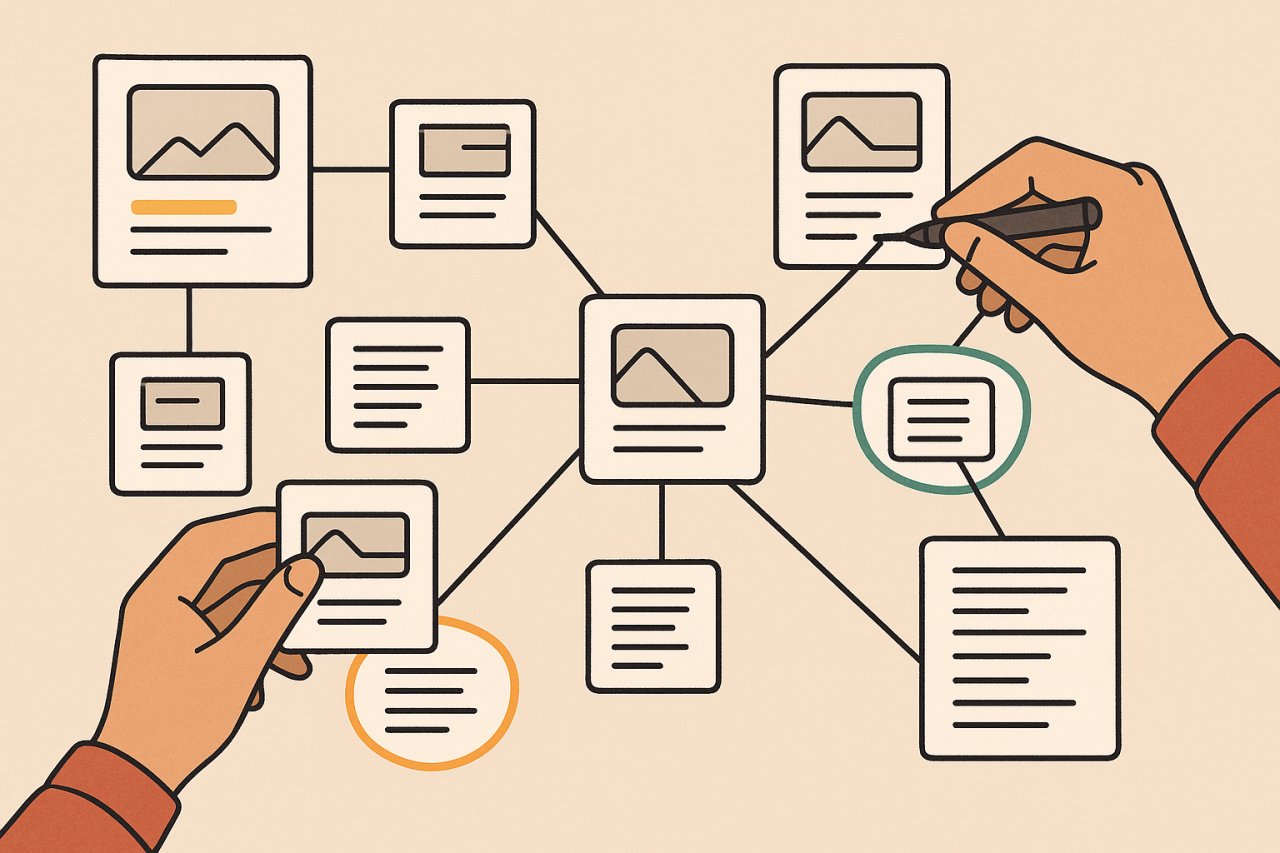
For each high-value orphan, identify 3-5 existing posts where a contextual internal link would make sense. Don’t force it — the link should add value to the reader, not just check an SEO box.
Open each source post. Find a sentence or paragraph where the orphan’s topic naturally comes up. Add the link inline, using descriptive anchor text that tells readers what they’ll find.
Step 3: Build Hub Pages for Cluster Orphans
Sometimes you’ll have a cluster of related orphans — like five deep-dive posts on specific WordPress security topics, all without links. Instead of manually linking each one from dozens of posts, create or update a hub page that links to all five.
Then link to that hub from your main navigation or relevant high-authority pages. You’ve reconnected five orphans with one strategic move.
Step 4: Automate Ongoing Detection
Fixing orphans once isn’t enough. New content creates new orphans. You need a system that prevents this from happening again.
This is where automation saves you. Tools like AI Internal Links continuously scan your WordPress site, identify orphaned content, and automatically create relevant internal links based on semantic analysis. Instead of running manual audits every quarter, the plugin keeps your link structure healthy in real-time.
For sites publishing multiple posts per week, this kind of automation isn’t a luxury — it’s the only way to keep crawlability intact at scale.
Advanced Fixes for Persistent Orphan Issues
Restructure Your Navigation
If you’re constantly fighting orphan pages, your site architecture might be the root cause. Review your menu structure. Are important pages buried three clicks deep with no alternative paths?
Add secondary navigation — footer links, sidebar widgets, breadcrumbs — that create multiple routes to key content. Google rewards sites where important pages are easy to reach.
Build Automatic Related Post Sections
Most WordPress themes include a ‘related posts’ section at the end of articles. If yours doesn’t, add one. Plugins like YARPP or Jetpack’s Related Posts feature create automatic internal links based on content similarity.
This doesn’t replace strategic manual linking, but it creates a safety net. Every new post automatically gets at least a few internal links from older content.
Audit Your Pagination and Archive Pages
Some orphans hide in paginated archives. A post published months ago might have scrolled off your first few archive pages, and if it never got linked from other posts, it’s effectively orphaned.
Solution: link to high-performing older posts from new related content. Don’t let publish date determine link equity.
Measuring the Impact of Your Orphan Page Fixes
You’ve reconnected your orphans. Now track what changed:
Monitor Crawl Stats in Search Console
Check the ‘Crawl Stats’ report before and after your fixes. You should see an increase in pages crawled per day as Googlebot discovers your newly-connected content. If crawl rate stays flat, your links might not be prominent enough.
Watch Indexation Coverage
The Coverage report will show previously excluded pages moving to ‘Valid’ status. This can take 2-4 weeks depending on your site’s crawl frequency. Don’t panic if it’s not immediate.
Track Rankings for Previously Orphaned URLs
Pull ranking data for the specific URLs you reconnected. Many will see position improvements within 30 days as Google recrawls them and recognizes their place in your site architecture.
One client saw a 40% traffic increase on a product comparison page that had been orphaned for six months. It was already ranking, but barely. Proper internal links pushed it from position 8 to position 3.
Common Mistakes When Fixing Orphan Pages
Over-Linking from One Page
Some site owners find 20 orphans and link to all of them from their homepage. Bad move. That dilutes link equity and looks spammy. Spread links across multiple contextually relevant pages.
Using Generic Anchor Text
‘Click here’ and ‘read more’ are wasted opportunities. Use descriptive anchors that include target keywords naturally. ‘Learn how to optimize crawl budget’ beats ‘this post’ every time.
Forgetting to Update Old Content
You can’t just add links to new posts. Go back to high-authority older content and update it with links to your reconnected pages. That’s where the real PageRank flows.
Final Take: Make Internal Linking a Publishing Habit
Orphan pages happen when internal linking is an afterthought. The fix isn’t just a one-time audit — it’s changing how you publish.
Before you hit publish on any new post, ask: which three existing articles should link here? Then open them, add the links, and update their modified dates. This 5-minute habit prevents orphans from forming in the first place.
Your crawl budget is finite. Your content deserves to be found. Fix the orphans, tighten your internal linking structure, and let Google crawl the site you actually built — not the disconnected fragments it currently sees.