
Core Web Vitals aren’t some theoretical metrics cooked up in a boardroom. They’re Google’s attempt to quantify what real users experience when they click on your site. And if you’re running WordPress, you’re dealing with a platform that’s powerful but bloated by default. Themes pile on features nobody asked for. Plugins conflict with each other. Images get uploaded at full resolution because content creators don’t know better.
The good news? WordPress sites can achieve exceptional Core Web Vitals scores when you know which levers to pull. The bad news? Most advice you’ll find online is either outdated, too technical, or focused on edge cases that don’t move the needle.
This guide cuts through the noise. You’ll learn exactly what’s slowing down your WordPress site and how to fix it without hiring a developer.
Understanding Core Web Vitals Beyond the Marketing Hype
Google introduced Core Web Vitals as ranking factors in 2021. Since then, they’ve become more important with each algorithm update. But here’s what most articles won’t tell you: Core Web Vitals aren’t equally weighted, and obsessing over perfect scores can waste your time.
The Three Metrics That Actually Matter
Largest Contentful Paint (LCP) measures how long it takes for the main content of your page to load. Google wants this under 2.5 seconds. For WordPress sites, this is almost always about images, web fonts, or render-blocking resources.
First Input Delay (FID) — now being replaced by Interaction to Next Paint (INP) — measures responsiveness. How quickly does your site react when someone clicks a button or taps a menu? WordPress themes with heavy JavaScript frameworks struggle here.
Cumulative Layout Shift (CLS) tracks visual stability. Ever started reading an article when suddenly an ad loads and the entire page jumps? That’s CLS. WordPress sites suffer from this when images load without defined dimensions or when content dynamically injects above the fold.
Why WordPress Sites Fail These Tests
WordPress wasn’t built for speed. It was built for flexibility. Every plugin you install adds database queries. Every theme feature toggle loads additional CSS and JavaScript. The problem compounds because most WordPress users don’t realize they’re making performance-killing decisions until it’s too late.
Consider this: a default WordPress installation with a popular theme like Astra or GeneratePress scores reasonably well on Core Web Vitals. Add five plugins — a page builder, an SEO plugin, a forms plugin, a caching plugin, and a social sharing tool — and suddenly you’re in the red.
The issue isn’t the plugins themselves. It’s that they all load resources on every page, whether needed or not. A contact form plugin loads its CSS and JavaScript on your blog posts. Your page builder loads its editor assets even on posts you didn’t build with it.
Real-World Impact on Rankings and Traffic
Google’s John Mueller has repeatedly said that Core Web Vitals are a tiebreaker when content quality is similar. That sounds minor until you realize how many queries have multiple high-quality results competing for the same spots.
Data from multiple SEO tools shows that sites with good Core Web Vitals scores tend to rank higher than those with poor scores, when other factors are equal. But here’s the nuance: if your content is significantly better than competitors, you can still rank well with mediocre Core Web Vitals. The problem is that your competitors are also improving their performance, which means you can’t afford to ignore it.
Measuring Your WordPress Core Web Vitals Accurately
Before you fix anything, you need accurate data. Testing Core Web Vitals is more complicated than checking page speed because these metrics are based on real user experiences, not lab simulations.
Field Data vs Lab Data: Know the Difference
Field data comes from actual Chrome users visiting your site. This is what Google Search Console reports and what ultimately affects your rankings. The challenge? You need sufficient traffic for Google to collect meaningful field data.
Lab data comes from tools like PageSpeed Insights or Lighthouse running in controlled environments. It’s useful for diagnosis but doesn’t always reflect real-world conditions. Your lab scores might be perfect while your field data shows issues because real users have slower connections or older devices.
For WordPress sites, you want to check both. Use Google Search Console for field data trends and PageSpeed Insights for diagnostic recommendations.
Tools Every WordPress Owner Should Use
Google Search Console is your source of truth. The Core Web Vitals report shows which URLs are failing and why. Check this weekly, not monthly. Problems compound quickly.
PageSpeed Insights gives you specific recommendations with priority levels. Don’t try to fix everything at once. Focus on the high-impact items first.
Chrome DevTools lets you simulate different network conditions and device types. Your site might perform well on your MacBook Pro with fiber internet, but how does it handle 3G connections?
GTmetrix and WebPageTest provide waterfall charts that show exactly which resources are blocking your page load. These tools help you identify the specific plugins or theme elements causing problems.
Setting Realistic Performance Targets
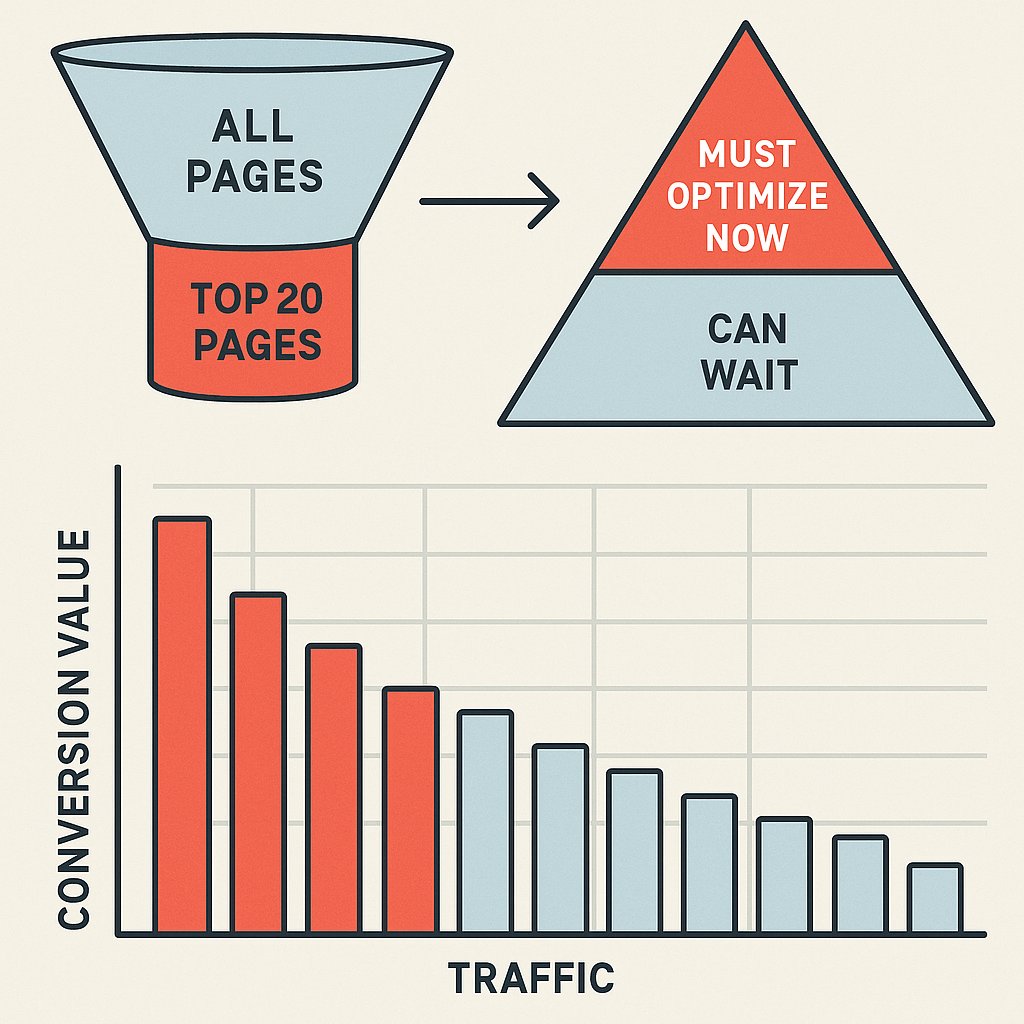
Not every page needs perfect Core Web Vitals scores. Your homepage and top landing pages? Absolutely optimize these. An obscure blog post from 2018 that gets 10 visits per month? Don’t waste time on it.
Prioritize pages by traffic and conversion value. Use Google Analytics to identify your top 20 pages, then focus your optimization efforts there. Once those pages pass Core Web Vitals thresholds, you can tackle the long tail.
Fixing LCP: Making Your Content Load Faster
Largest Contentful Paint is typically the easiest Core Web Vitals metric to improve on WordPress sites. That’s because most LCP issues come from a handful of common problems.
Image Optimization Isn’t Optional Anymore
If your LCP element is an image — which it usually is — that image needs to load fast. Most WordPress users upload images straight from their camera or screenshot tool without optimization. A 4MB hero image might look crisp, but it’s destroying your LCP.
Convert images to WebP format. WebP images are 25-35% smaller than JPEGs with similar quality. WordPress 5.8+ supports WebP natively, but you need a plugin to automatically convert uploads.
ShortPixel and Imagify are solid choices. They compress images on upload and can convert your existing media library in bulk. Don’t use lossless compression for photos — you won’t notice the quality difference with lossy compression set to 80-85%, but file sizes drop dramatically.
Implement lazy loading correctly. WordPress has native lazy loading for images since version 5.5, but it applies to all images. Your LCP image should NOT be lazy-loaded. Add fetchpriority=’high’ to your hero image to tell browsers to load it first.
Web Fonts Are Killing Your LCP
Custom web fonts add personality to your site, but they also add render-blocking requests. Every font weight and style is a separate file that needs to download before text displays.
Limit yourself to two font families maximum and only include the weights you actually use. If your theme loads six different font weights but you only use regular and bold, you’re wasting time.
Use font-display: swap in your CSS to show system fonts immediately while custom fonts load. Text that’s readable immediately is better than invisible text waiting for fonts.
Consider whether you need custom fonts at all. System fonts like -apple-system and Segoe UI look professional and load instantly. Big sites like GitHub and Bootstrap use system fonts exclusively.
Server Response Time Optimization
Your server’s Time to First Byte (TTFB) impacts everything that follows. If your server takes 1.5 seconds to start sending data, you’re already behind.
Upgrade your hosting if you’re on shared hosting. Managed WordPress hosts like Kinsta, WP Engine, or Cloudways provide server-level optimizations you can’t replicate on cheap shared hosting. The price difference — usually $20-30/month — is worth it if you’re serious about performance.
Enable object caching if your host supports it. Redis or Memcached dramatically reduces database queries by caching frequent requests in memory. You’ll need a plugin like Redis Object Cache to integrate this with WordPress.
Critical CSS and Render-Blocking Resources
When a browser loads your page, it stops rendering while it downloads and processes CSS and JavaScript files. This delay increases LCP.
Generate and inline critical CSS — the minimal CSS needed to render above-the-fold content. Tools like WP Rocket and Perfmatters can automate this. Your full CSS loads asynchronously while users see styled content immediately.
Defer non-critical JavaScript so it doesn’t block rendering. WordPress core JavaScript often loads in the header when it should load in the footer. Most optimization plugins can move scripts automatically, but test thoroughly because some plugins break when their JavaScript is deferred.
Solving FID and INP: Improving Interactivity
First Input Delay measures the delay between a user’s first interaction and the browser’s response. Google is transitioning to Interaction to Next Paint (INP), which measures responsiveness throughout the page lifecycle.
JavaScript Is Your Enemy (Usually)
When JavaScript executes, the browser can’t respond to user input. If a heavy script runs for 500ms when someone clicks your menu, that’s a terrible user experience.
Identify which plugins load the most JavaScript. Use Query Monitor or a similar debugging plugin to see which scripts are running on each page. You’ll often find that plugins load scripts unnecessarily.
Slider plugins are notorious for this. Revolution Slider and similar tools load hundreds of kilobytes of JavaScript even if you only use basic features. Consider whether you need a slider at all — static images or CSS animations often work better.
Reduce Third-Party Script Impact
Google Analytics, Facebook Pixel, heatmap tools, chatbots, ad networks — every third-party script degrades interactivity. Each script competes for processing time.
Load third-party scripts asynchronously and delay them until after user interaction. Google Tag Manager helps consolidate multiple scripts into a single manageable container.
For scripts that must load immediately, use a tag manager to control when and how they execute. Some scripts can wait until someone scrolls or moves their mouse.
Update to PHP 8.1 or Higher
PHP 8.x is significantly faster than PHP 7.4 for WordPress. Processing time drops by 20-40% in most cases. If your host still runs PHP 7.4 or older, upgrade immediately after testing your plugins for compatibility.
Faster server-side processing means the browser becomes interactive sooner. This directly improves FID and INP scores.
Eliminating CLS: Stopping Layout Shifts
Cumulative Layout Shift is the most frustrating Core Web Vitals metric to fix because shifts can come from anywhere. One poorly implemented ad or missing image dimension can tank your score.
Set Image and Video Dimensions Explicitly
When browsers don’t know an image’s size, they reserve zero space until it loads. Then the image pops in and pushes content down.
WordPress automatically adds width and height attributes to images when you upload them, but themes often override these with CSS. Check your theme’s CSS for rules that remove dimension attributes.
For responsive images, use aspect ratio boxes. Modern CSS makes this easy with the aspect-ratio property, but older themes might need manual fixes.
Reserve Space for Ads and Embeds
Ads cause more layout shifts than any other element. They load asynchronously and often don’t have fixed dimensions.
Define minimum heights for ad slots in your CSS. If your sidebar ads are typically 300×250, reserve that space even if the ad hasn’t loaded yet.
For embedded content (YouTube videos, tweets, Instagram posts), use placeholder containers with the correct aspect ratio. Most page builders handle this automatically, but custom embeds often don’t.
Be Careful With Dynamic Content
Cookie notices, newsletter popups, and notification bars that appear after page load cause layout shifts if they push content down instead of overlaying it.
Position dynamic elements absolutely or fixed so they don’t affect page flow. Cookie notices should slide over content, not push it down.
Test your site with cache cleared and ad blockers disabled. CLS issues often hide during normal browsing but appear for first-time visitors.
WordPress Plugins and Configuration for Core Web Vitals
The right combination of plugins can transform a sluggish WordPress site into a performance winner. The wrong combination creates conflicts and makes things worse.
Caching Plugins: Your First Line of Defense
WP Rocket is the gold standard for WordPress caching. It’s not free ($59/year), but it handles page caching, browser caching, and advanced optimizations like lazy loading and critical CSS generation.
For free alternatives, WP Super Cache or W3 Total Cache work well but require more configuration. They don’t include advanced features like critical CSS generation out of the box.
Enable page caching, browser caching, and GZIP compression at minimum. These three settings alone can cut load times in half.
Database Optimization
WordPress databases accumulate cruft over time. Post revisions, spam comments, transient options — all this clutter slows down queries.
WP-Optimize cleans database tables and removes unnecessary data without touching active content. Run it weekly or enable automatic optimization.
Disable post revisions if you don’t need them. They balloon database size, especially on high-volume sites. Add define(‘WP_POST_REVISIONS’, 3); to wp-config.php to limit revisions.
CDN Integration
Content Delivery Networks distribute your static assets (images, CSS, JavaScript) across global servers so users download from nearby locations.
Cloudflare’s free plan provides a basic CDN plus security features. For WordPress-specific CDNs, consider BunnyCDN or KeyCDN.
CDNs help most with international traffic. If 90% of your visitors come from one country, the benefit is smaller but still worthwhile.
Internal Linking Optimization for Performance
Here’s something most Core Web Vitals guides ignore: your internal linking structure affects performance. Sites with well-organized internal links help search engines crawl more efficiently, which indirectly supports better user experiences.
Strategic internal links reduce bounce rates by keeping users engaged, which signals quality to Google. They also distribute page authority throughout your site, strengthening your overall domain strength.
But manually managing internal links across hundreds of posts is tedious and error-prone. You miss obvious connections or over-optimize certain anchors. Tools like AI Internal Links automate this process intelligently, analyzing your content to suggest relevant connections that make sense contextually.
When internal linking is automated and strategic, users navigate more smoothly, pages load with clear pathways to related content, and your overall site architecture supports better Core Web Vitals performance through improved crawlability and user engagement.
Advanced WordPress Optimization Techniques
Once you’ve handled the basics, these advanced techniques can push your Core Web Vitals into the green across all metrics.
Implement a Performance Budget
Decide on maximum acceptable values for page weight and request count, then monitor whether your site stays within budget.
Set alerts for performance degradation. When a new plugin or theme update pushes you over budget, you’ll know immediately instead of discovering it weeks later in Search Console.
Bundlephobia and similar tools help evaluate plugins before installation. A plugin that adds 150KB of JavaScript might not be worth its features.
Optimize for Mobile First
Google uses mobile-first indexing, which means your mobile experience matters more than desktop. Mobile users typically have slower connections and less powerful devices.
Test on real devices, not just emulators. Chrome DevTools device simulation is useful, but nothing beats testing on an actual mid-range Android phone with a 4G connection.
Consider using responsive images that serve different sizes based on viewport. WordPress supports this with srcset attributes, but many themes don’t implement it optimally.
Reduce DNS Lookups and Redirects
Every external domain your site connects to requires a DNS lookup. Each redirect adds round-trip time.
Minimize the number of external domains. If you load resources from five different CDNs and domains, consolidate them.
Fix redirect chains. If yoursite.com redirects to www.yoursite.com which redirects to www.yoursite.com/home, you’re adding unnecessary delays. Direct users to the final URL in one step.
Enable HTTP/2 or HTTP/3
HTTP/2 allows multiplexing, meaning multiple files download simultaneously over a single connection. This dramatically improves load times for sites with many resources.
Most modern hosts support HTTP/2 automatically if you use HTTPS. HTTP/3 (built on QUIC) is even faster but less widely supported. Check with your host about availability.
Monitoring and Maintaining Performance Over Time
Core Web Vitals optimization isn’t a one-time task. Sites regress naturally as you add content, update plugins, and modify themes.
Set Up Automated Monitoring
Manual checks are insufficient. You need automated alerts when performance degrades.
Google Search Console emails weekly reports if configured. Pay attention to these. A sudden spike in poor URLs indicates something changed.
Third-party monitoring tools like Calibre, SpeedCurve, or DebugBear track Core Web Vitals continuously and alert you to regressions.
Audit New Plugins Before Installation
Before activating any new plugin, check its performance impact. Install it on a staging site and run PageSpeed Insights before and after.
Many plugins claim to be lightweight but aren’t. Reviews and ratings don’t tell you about performance implications.
If a plugin degrades your scores significantly, look for alternatives or consider whether you actually need its features.
Regular Performance Reviews
Schedule monthly performance reviews. Check your top landing pages, review Search Console Core Web Vitals reports, and identify any new issues.
Document what changes you make. When performance improves or degrades, you’ll want to know what caused it. A simple spreadsheet tracking changes and corresponding metrics helps identify patterns.
Common Mistakes WordPress Owners Make
After optimizing hundreds of WordPress sites, certain mistakes appear repeatedly. Avoid these and you’ll save weeks of frustration.
Over-Optimizing Can Break Your Site
Enabling every optimization in WP Rocket or similar plugins doesn’t guarantee better results. Some optimizations conflict with specific themes or plugins.
Enable optimizations incrementally. Turn on page caching, test your site. Add lazy loading, test again. If something breaks, you’ll know exactly what caused it.
Always test on staging before applying optimizations to production.
Ignoring Mobile Performance
Your desktop scores might be perfect while mobile scores fail. Desktop computers have more processing power and faster connections.
Optimize for mobile first. If mobile passes Core Web Vitals, desktop will almost certainly pass as well.
Choosing Theme Features Over Performance
Page builders with drag-and-drop interfaces and hundreds of pre-built sections seem appealing. They’re also performance nightmares.
Lightweight themes like GeneratePress, Kadence, or Astra provide sufficient flexibility without the bloat. You’ll sacrifice some convenience but gain dramatically better performance.
If you must use a page builder, Gutenberg (WordPress’s native editor) performs better than Elementor, Divi, or other third-party builders.
Neglecting Database Maintenance
A bloated database slows every query. WordPress doesn’t clean up after itself automatically.
Schedule regular database optimization. Remove old revisions, clean spam comments, delete unused tables from deactivated plugins.
Backup before cleaning, but don’t skip this maintenance. The performance gains are substantial.
The Reality of Core Web Vitals in 2026
Core Web Vitals continue evolving. Google refines measurement methodologies and adjusts thresholds based on ecosystem-wide data. What passes today might not pass next year.
The key insight? Core Web Vitals are now table stakes for competitive niches. You won’t win rankings on performance alone, but poor performance will hold back even exceptional content.
WordPress makes achieving good Core Web Vitals challenging but not impossible. The sites that win are those where owners understand the platform’s limitations and work within them strategically. You don’t need to become a developer or spend thousands on custom optimization.
You need to make informed decisions about hosting, themes, plugins, and content. You need to measure regularly and fix issues before they compound. Most importantly, you need to recognize that performance optimization is ongoing, not a checklist you complete once.
Start with your highest-traffic pages. Fix the obvious issues: oversized images, render-blocking scripts, missing dimensions. Move to more advanced optimizations once the basics are solid. Monitor your Search Console data weekly and respond to problems quickly.
The WordPress sites ranking in 2026 are those that treat Core Web Vitals as seriously as content quality and backlink profiles. Your competitors are already optimizing. The question is whether you’ll join them or fall behind.